FlowCLI
A fast, minimal CLI project task manager for efficient task and project management
Zing Jen - Project Portfolio Page
Overview
FlowCLI is a Command Line Interface (CLI) app for managing tasks and projects, optimised for fast, fully keyboard-driven workflows. Track priorities, deadlines and statuses of your projects, filter and sort instantly, then export the current view to a TXT file to save your changes. If you’re a fast typer, FlowCLI is perfect for you - save hours on project management as it gets your work done faster than click-heavy apps.
Summary of Contributions
Code contributed
Click here to see my code contributions
Enhancements implemented
- Task management commands: Implemented the core
add-task,update-task,delete-task,mark, andunmarkflows with robust validation so users can reliably manage their work. - Core refactor & inline commands: Reworked the parser/command architecture, standardised every inline command, and migrated the codebase from
projectNametoprojectIndexfor better consistency and performance. - Test suite: Built and maintained comprehensive JUnit and Text UI coverage for command logic and edge cases to keep regressions out.
Contributions to the User Guide (UG)
- Structured and wrote the entire User Guide, ensuring all features were clearly documented with examples.
- Continuously updated the User Guide to reflect the latest changes and features, culminating in across all releases.
Contributions to the Developer Guide (DG)
- Enhanced the Developer Guide with detailed explanations of core functionalities and design principles.
- Created detailed UML diagrams for key task management features, including the
update tasksequence. - Documented the architecture and implementation details for the
update taskfeature to guide future development.
Contributions to team-based tasks
- Set up and managed the GitHub organization, repository, and team structure.
- Maintained the project’s issue tracker, ensuring all tasks were well-defined and tracked.
- Took charge of release management, including versioning and tagging for project milestones.
- Enabled and configured GitHub Pages for hosting our project documentation.
- Established and enforced code quality standards by setting up tools like Checkstyle and enabling Gradle assertions.
- Contributed to project planning by documenting target user profiles and user stories.
Review/mentoring contributions
- Actively participated in code reviews, providing detailed feedback to teammates to improve code quality, enforce coding standards, and identify potential bugs.
- Addressed and resolved key issues in teammates’ pull requests, offering constructive suggestions and guidance to elevate the team’s overall code quality.
Contributions beyond the project team
- Proactively identified and reported bugs in other teams’ projects to help them improve their software.
- Contributed to the wider learning community by answering questions and sharing knowledge on the course forum.
Contributions to the User Guide (Extracts)
The following is an extract from the UserGuide.md that I contributed to.
Features
General Command Format
FlowCLI supports two command modes to suit your preference:
Inline Commands: Provide all arguments in one line for quick execution
- Commands are case-insensitive.
- Projects are referenced by their index from
list --all. - Task descriptions can contain spaces. Separate options from the description with
--. - Deadlines use the
YYYY-MM-DDformat. Priorities acceptlow,medium, orhigh.
Interactive Mode: Get guided prompts for missing information
- Type just the command name (like
add,create,update) and FlowCLI will ask for each required detail - Perfect for learning commands or when you prefer step-by-step guidance
- All the same validation and features apply
Both modes work identically - choose whichever feels more comfortable!
Create a project: create-project <projectName> / create (interactive mode)
Adds a new project. If you repeat the command with the same name (any casing), FlowCLI reports a duplicate.
create-project "Birthday Bash"
List projects or tasks: list --all or list <projectIndex> or list (interactive mode)
list --allshows all projects and their indices.list <projectIndex>shows the tasks under a specific project.
list 1
Add a task: add-task <projectIndex> <description> [--priority <level>] [--deadline <YYYY-MM-DD>] or add (interactive mode)
Adds a task under an existing project with optional priority and deadline. Priority defaults to medium, deadline defaults to none.
add-task 1 Hang fairy lights --priority high --deadline 2025-01-31
Update a task: update-task <projectIndex> <taskIndex> [--description <desc>] [--deadline <YYYY-MM-DD|none>] [--priority <level>] or update (interactive mode)
Edits the specified task in place. You can change one field or combine multiple options in the same command.
--descriptionreplaces the task description.--deadlineupdates the due date; passnone(orclear) to remove an existing deadline.--priorityacceptslow,medium, orhigh.
update-task 1 2 --description "Assemble party bags" --deadline 2025-02-15 --priority medium
update-task 1 3 --deadline none
Contributions to the Developer Guide (Extracts)
The following is an extract from the DeveloperGuide.md that I contributed to.
Task Management features by Zing Jen
The task management system forms the core of FlowCLI, allowing users to create, track, and manage their work within different projects. The implementation follows the command pattern, where each user action is encapsulated in a dedicated command class.
add-task command
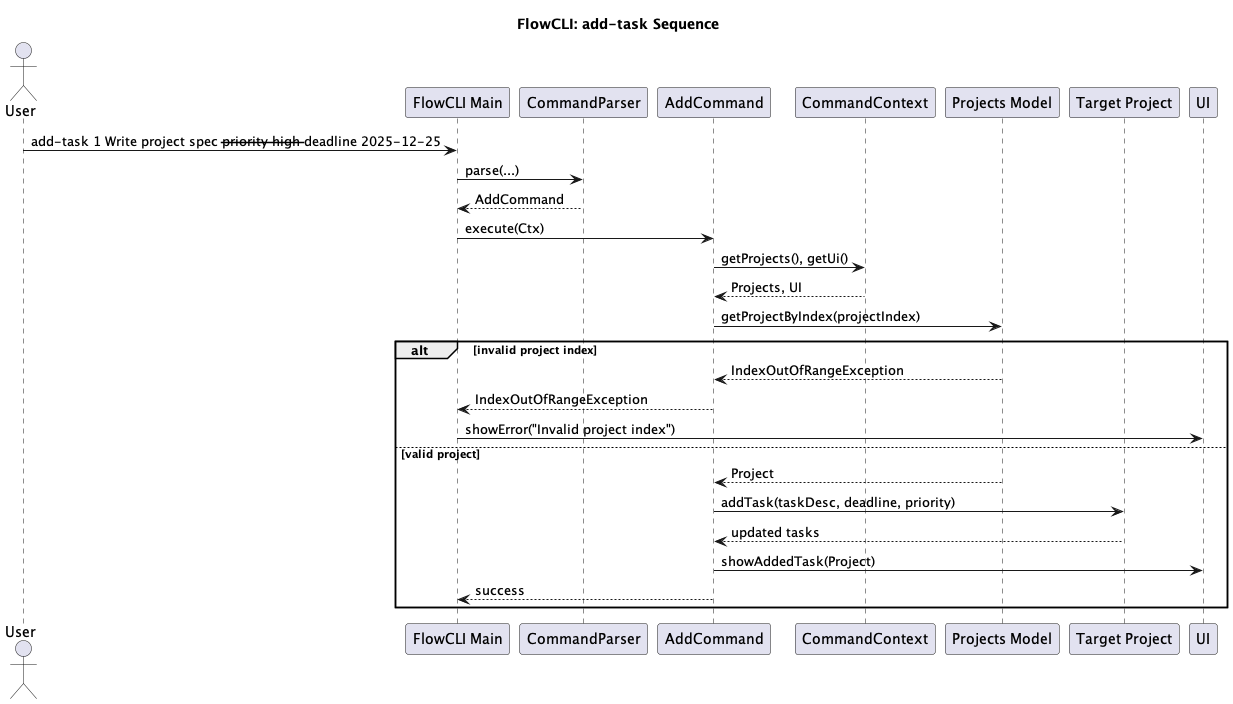
The add-task command allows users to add a new task to a specified project. Users can provide a task description, an optional deadline, and an optional priority.
Command format: add-task <projectIndex> <description> [--priority <level>] [--deadline <YYYY-MM-DD>]
The following sequence diagram illustrates the process of adding a task:
Implementation Details:
- The
CommandParseridentifies theadd-taskcommand and creates anAddCommandobject. AddCommand#execute()is called.- The command parses the arguments to extract the project index, task description, deadline, and priority.
- It validates that the project exists and that a task description is provided.
- If validation passes, it retrieves the
Projectobject and callsproject.addTask()to create and add the new task. - The
ConsoleUithen displays a confirmation message to the user.
update-task command
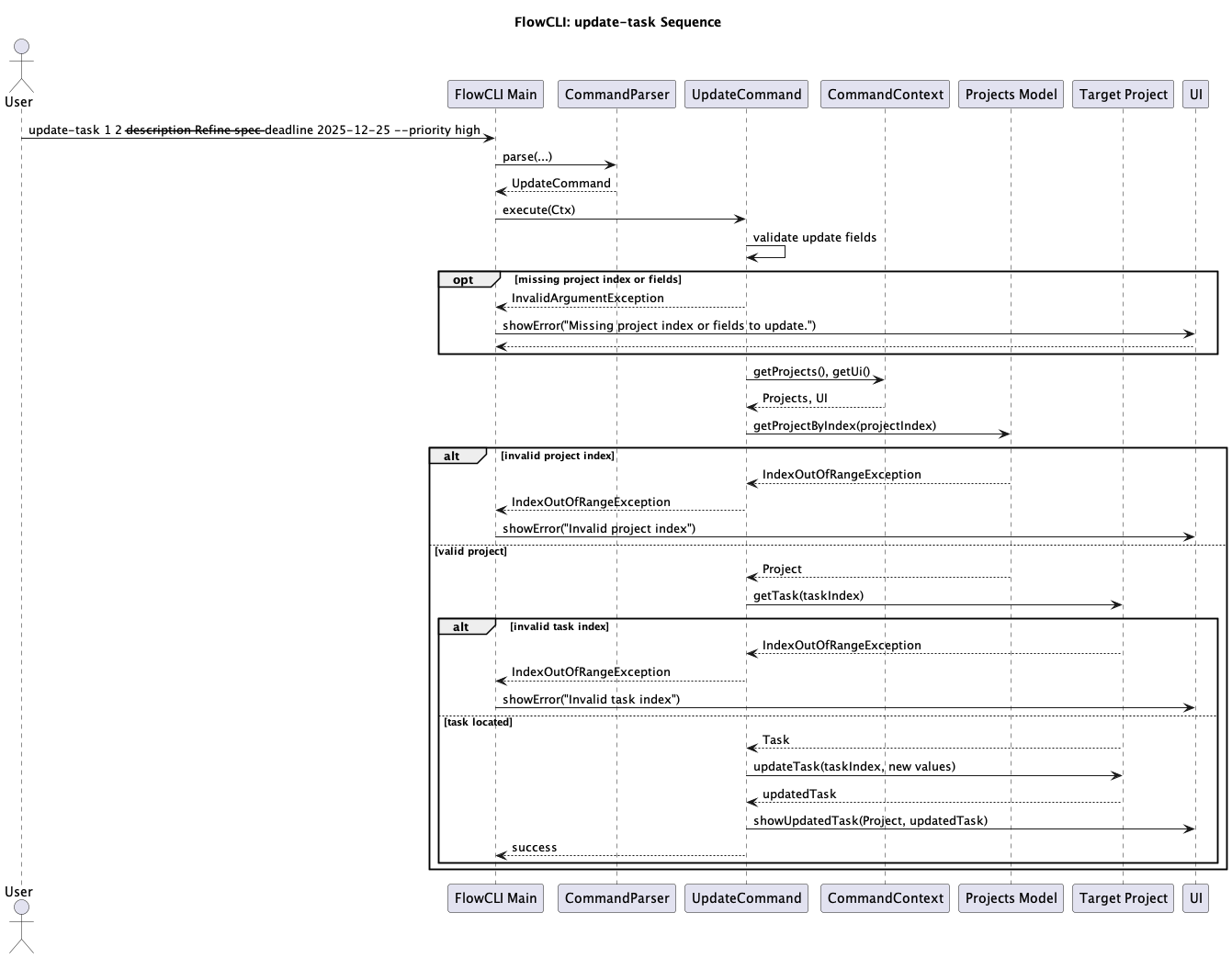
The update-task command modifies the attributes of an existing task, such as its description, deadline, or priority.
Command format: update-task <projectIndex> <taskIndex> [--description <desc>] [--deadline <YYYY-MM-DD|none>] [--priority <level>]
The update process is shown below:
Implementation Details:
- The
UpdateCommandis responsible for parsing the various optional flags that specify which fields to update. - It validates the project and task index.
- It calls
project.updateTask(), passing the new values. TheupdateTaskmethod handles the logic of only changing the fields that were provided in the command. - The UI displays the updated task details.