FlowCLI
A fast, minimal CLI project task manager for efficient task and project management
Developer Guide
Acknowledgements
This project is based on AddressBook-Level3 (AB3) from the SE-EDU initiative. We adapted its architecture, parser logic, and command execution framework.
We also acknowledge:
- PlantUML for UML diagram generation.
- NUS CS2113 teaching team for guidance and templates.
Table of Contents
- Architecture
- Implementation & Design
- Data Persistence
- User Interface
- Product scope
- User Stories
- Non-Functional Requirements
- Glossary
- Instructions for manual testing
Architecture by Yao Xiang
FlowCLI follows a layered architecture with clear separation of concerns:
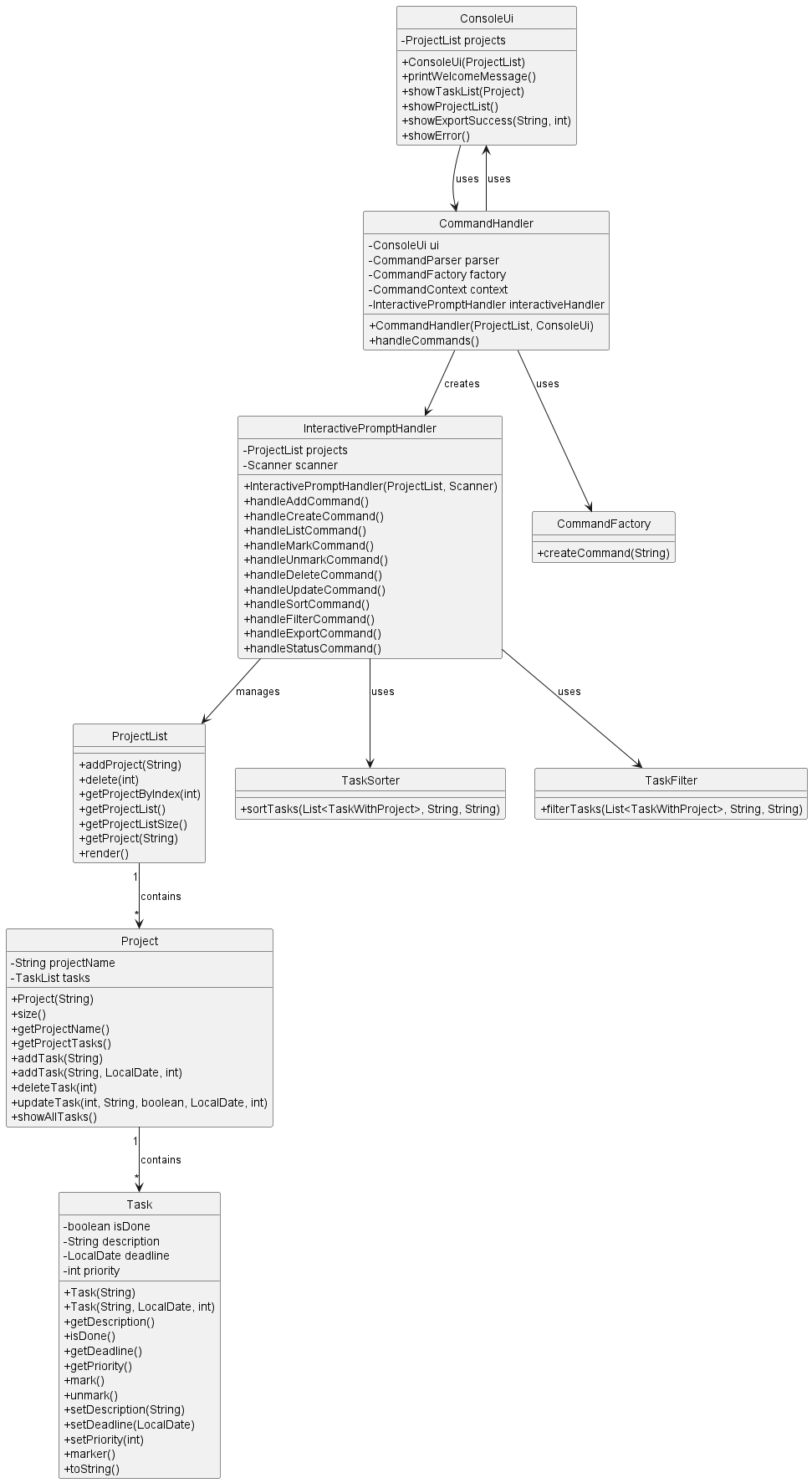
Component Relationships:
The diagram shows the main components and their relationships:
- ConsoleUi handles all user interface interactions
- CommandHandler orchestrates command processing
- InteractivePromptHandler manages interactive mode dialogues
- CommandFactory creates command objects
- ProjectList contains multiple Project instances (1-to-many relationship)
- Project contains multiple Task instances (1-to-many relationship)
- TaskSorter and TaskFilter provide data processing utilities
Note: The multiplicity notation “1” → “” indicates a one-to-many relationship in UML. For example, one ProjectList can contain zero or more Projects, and one Project can contain zero or more Tasks.*
Key Design Principles:
- Single Responsibility: Each class has one primary responsibility
- Dependency Injection: Components receive dependencies rather than creating them
- Command Pattern: All operations implemented as command objects
- Layered Architecture: UI → Logic → Model separation
Implementation & Design
Core Functionality
Command Processing Infrastructure by Zhenzhao
The command processing infrastructure forms the foundation of FlowCLI, handling all user input parsing, validation, and command execution. It consists of three key components that work together to transform user input into executable commands.
Key Components:
- CommandHandler - Manages the main command loop, reads user input, coordinates parsing and execution
- CommandParser - Parses command words and extracts arguments, maps input to CommandType enum
- ArgumentParser - Parses project identifiers (index or name), resolves to Project objects, validates existence
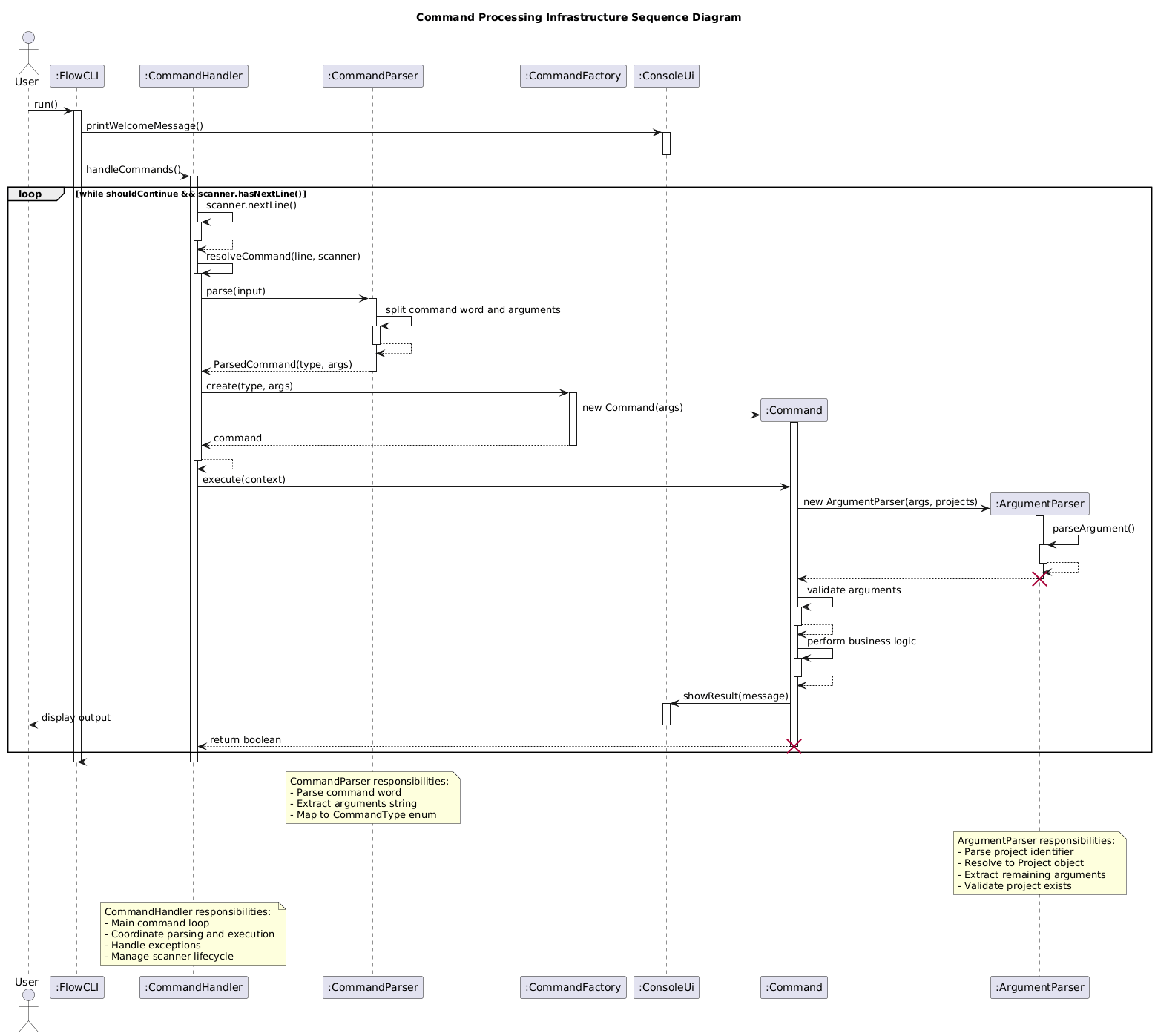
Implementation Details:
- FlowCLI initializes by creating CommandHandler, CommandParser, CommandFactory, and ConsoleUi (these objects exist throughout the application lifecycle).
- CommandHandler manages the main command loop, reading user input line by line using a Scanner.
- For each input line, CommandParser splits the command word from arguments and maps it to a CommandType enum.
- CommandFactory creates a new Command object for each user input based on the type.
- During command execution, a new ArgumentParser is created to validate and resolve project identifiers (if applicable), converting indices or names into Project objects. This parser is destroyed after parsing completes.
- The Command validates arguments, performs business logic, and displays results through ConsoleUi.
- After execution, the Command object is destroyed (each command is executed once and discarded).
- Exceptions are caught and handled gracefully, displaying user-friendly error messages.
Note: The sequence diagram shows constructor calls only for objects created during the command processing flow (Command and ArgumentParser). Pre-existing components (FlowCLI, CommandHandler, CommandParser, CommandFactory, ConsoleUi) are created during application initialization and persist throughout the session.
Design Rationale:
- Separation of Concerns: CommandParser handles syntax, ArgumentParser handles semantics, CommandHandler orchestrates the flow.
- Reusability: ArgumentParser is used by multiple commands that need project resolution.
- Extensibility: New commands can be added by extending the CommandType enum and Command base class.
- Error Handling: Validation happens early in the pipeline, preventing invalid state changes.
Example Flow:
User input: "add-task 1 Fix bug --priority high"
↓
CommandParser: type=ADD_TASK, args="1 Fix bug --priority high"
↓
ArgumentParser: projectIndex=1 → resolves to Project("CS2113T"), remaining="Fix bug --priority high"
↓
AddCommand: validates and adds task to project
↓
ConsoleUi: displays confirmation
Validation Framework by Sean Lee
Input validation is centralized to ensure consistent rules, clear error messages, and early failure before any state mutation.
Key Components:
CommandValidator- Static utility methods for validating command parameters (priorities, dates, filter/sort options, command syntax)ValidationConstants- Canonical constants for valid values (priorities, filter types, sort fields/orders, keywords)
CommandValidator Methods:
validatePriority(String)- Validates and normalizes priority (low,medium,high, case-insensitive), throwsInvalidArgumentExceptionon failurepriorityToInt(String)- Converts validated priority string to integer (1=low, 2=medium, 3=high); use aftervalidatePriority()validateAndParseDate(String)- Validates date format (yyyy-MM-dd) and returnsLocalDate, throwsInvalidDateExceptionon failurevalidateFilterType(String)- Validates filter type (currently onlypriority), throwsInvalidArgumentExceptionon failurevalidateSortField(String)- Validates sort field (deadlineorpriority), throwsInvalidArgumentExceptionon failurevalidateSortOrder(String)- Validates sort order (ascendingordescending), throwsInvalidArgumentExceptionon failurevalidateFilterCommand(String[], int)- Validates filter command syntax completeness, throwsInvalidCommandSyntaxExceptionon failurevalidateSortCommand(String[], int)- Validates sort command syntax completeness, throwsInvalidCommandSyntaxExceptionon failure
ValidationConstants Values:
- Priorities:
PRIORITY_LOW,PRIORITY_MEDIUM,PRIORITY_HIGH(string values) - Priority integers:
PRIORITY_LOW_VALUE = 1,PRIORITY_MEDIUM_VALUE = 2,PRIORITY_HIGH_VALUE = 3 - Filter types:
FILTER_TYPE_PRIORITY - Sort fields:
SORT_FIELD_DEADLINE,SORT_FIELD_PRIORITY - Sort orders:
SORT_ORDER_ASCENDING,SORT_ORDER_DESCENDING - Keywords:
KEYWORD_BY,KEYWORD_FILTER,KEYWORD_SORT
Parser Integration:
-
CommandParser.parseIndexOrNull(String indexText, int maxIndex)- Parses a 1-based user index and converts to 0-based on success
- Validates index is within range [1, maxIndex]
- Throws:
MissingIndexException(if indexText is null),InvalidIndexFormatException(if not numeric),IndexOutOfRangeException(if out of range) - Returns the 0-based index (never returns null; throws exceptions on validation failure)
-
ArgumentParser.validateProjectIndex()- Verifies that a target project is resolvable from user input
- Detects non-numeric tokens and out-of-range indices against the current project list
- Must be called after
ArgumentParserconstruction to validate parsed project index - Throws:
MissingArgumentException,InvalidIndexFormatException,IndexOutOfRangeException,InvalidArgumentException
Usage Example:
// Typical validation pattern in commands (e.g., AddCommand, UpdateCommand)
ArgumentParser parsedArgument = new ArgumentParser(arguments, context.getProjects());
parsedArgument.validateProjectIndex();  // Validate project index first
Project targetProject = parsedArgument.getTargetProject();

String remaining = parsedArgument.getRemainingArgument();
if (remaining == null || remaining.trim().isEmpty()) {
    throw new MissingDescriptionException();  // Validate required fields
}

// Validate and convert priority
String validatedPriority = CommandValidator.validatePriority(priorityStr);
int priority = CommandValidator.priorityToInt(validatedPriority);

// Validate and parse date
LocalDate deadline = CommandValidator.validateAndParseDate(dateStr);
Extra Parameter Validation:
Commands that don’t accept parameters (e.g., bye, help, status, list) check for extra arguments using ArgumentParser.getRemainingArgument() and throw ExtraArgumentException:
String remaining = parsedArgument.getRemainingArgument();
if (remaining != null && !remaining.trim().isEmpty()) {
    throw new ExtraArgumentException("Unexpected extra parameters: " + remaining);
}
Exception Types:
MissingArgumentException- Required argument is missingExtraArgumentException- Unexpected extra parameters providedMissingIndexException- Required index argument is missingMissingDescriptionException- Required description/field is missing or emptyInvalidIndexFormatException- Index cannot be parsed as integerIndexOutOfRangeException- Index is out of valid rangeInvalidArgumentException- Argument format/value is invalid (e.g., invalid priority, filter type, sort field)InvalidDateException- Date format is invalid (expectsyyyy-MM-dd)InvalidFilenameException- Filename format is invalidInvalidCommandSyntaxException- Command syntax is malformed or incomplete
Validation Flow:
The following sequence diagram illustrates the validation process, showing both success and exception paths:
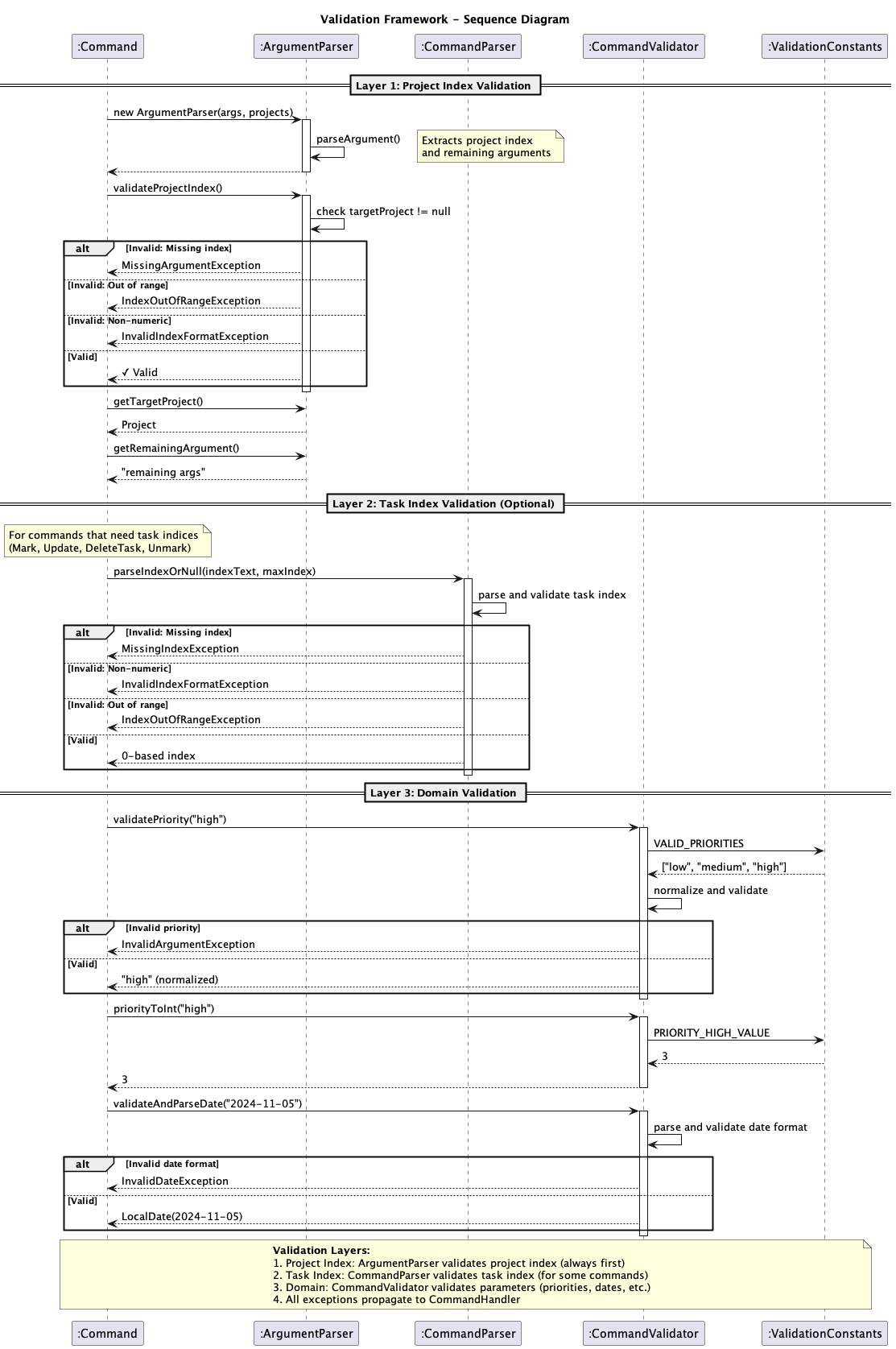
The validation flow operates in 3 main layers:
- Project Index layer:
ArgumentParser.validateProjectIndex()validates project index format and range (throwsMissingArgumentException,IndexOutOfRangeException,InvalidIndexFormatException) - always executed first - Task Index layer:
CommandParser.parseIndexOrNull()validates task index format and range (throwsMissingIndexException,InvalidIndexFormatException,IndexOutOfRangeException) - only for commands that need task indices (Mark, Update, DeleteTask, Unmark) - Domain layer: Commands use
CommandValidatormethods for domain-specific validation (priorities, dates, filters, sort options) which referenceValidationConstantsfor valid values
All exceptions propagate to CommandHandler, which catches FlowCLIException and displays user-friendly messages via ConsoleUi.
Pre-execution validation: All validation occurs before model mutation to preserve data integrity.
Best Practices:
- Always validate project index first using
ArgumentParser.validateProjectIndex()before accessing project data - Validate optional parameters (priority, deadline) before using them
- Use
validatePriority()followed bypriorityToInt()to normalize and convert priorities - Check for extra parameters on commands that don’t accept arguments
- Throw specific exception types rather than generic ones for better error messages
Task Management features by Zing Jen
The task management system forms the core of FlowCLI, allowing users to create, track, and manage their work within different projects. The implementation follows the command pattern, where each user action is encapsulated in a dedicated command class.
add-task command
The add-task command allows users to add a new task to a specified project. Users can provide a task description, an optional deadline, and an optional priority.
Command format: add-task <projectIndex> <description> [--priority <level>] [--deadline <YYYY-MM-DD>]
Example: add-task 2 "Draft project charter" --priority high --deadline 2025-02-15
Typical use cases:
- Capture newly scoped work items while planning the next project milestone.
- Log ad-hoc tasks (e.g., quick client follow-up) without leaving the relevant project.
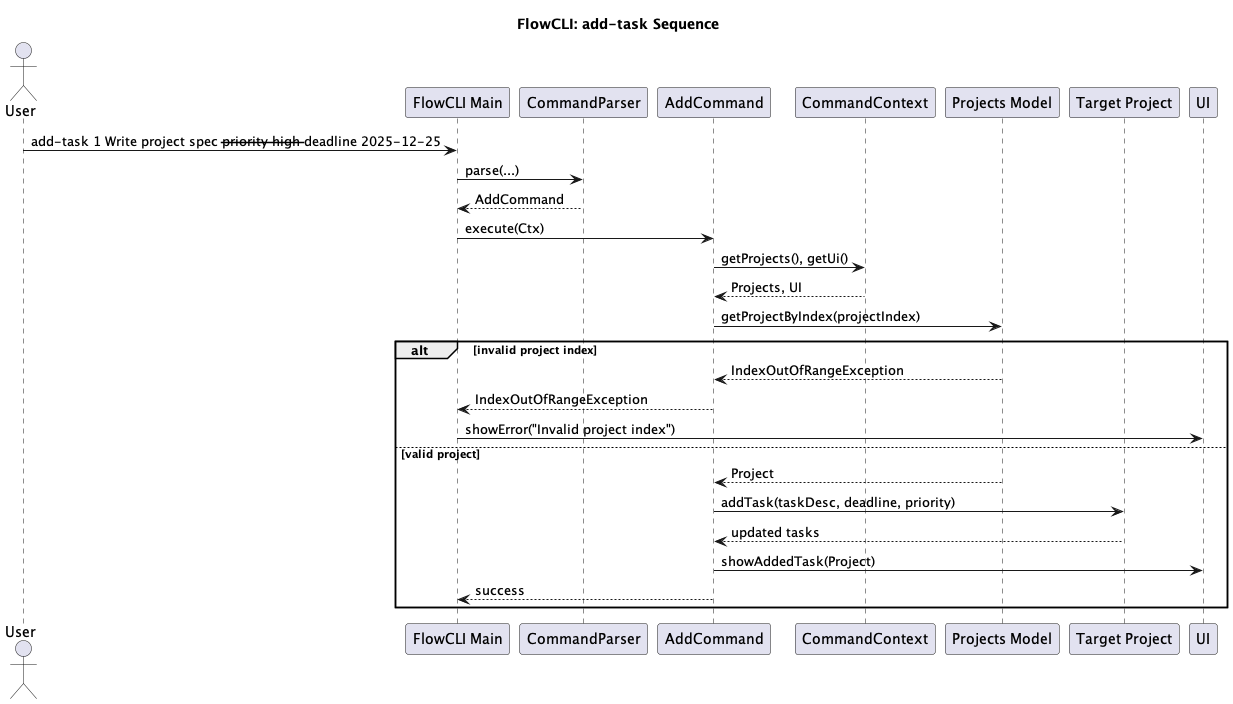
The following sequence diagram illustrates the process of adding a task:
Implementation Details:
- The
CommandParseridentifies theadd-taskcommand and creates anAddCommandobject. AddCommand#execute()is called.- The command parses the arguments to extract the project index, task description, deadline, and priority.
- It validates that the project exists and that a task description is provided.
- If validation passes, it retrieves the
Projectobject and callsproject.addTask()to create and add the new task. - The
ConsoleUithen displays a confirmation message to the user.
delete-task command
The delete-task command is used to remove a task from a project. It requires the project index and the 1-based index of the task to be deleted.
Command format: delete-task <projectIndex> <taskIndex>
Example: delete-task 3 5
Typical use cases:
- Clean up duplicate tasks created by mistake before sharing project status.
- Remove outdated work items that are no longer relevant after reprioritisation.
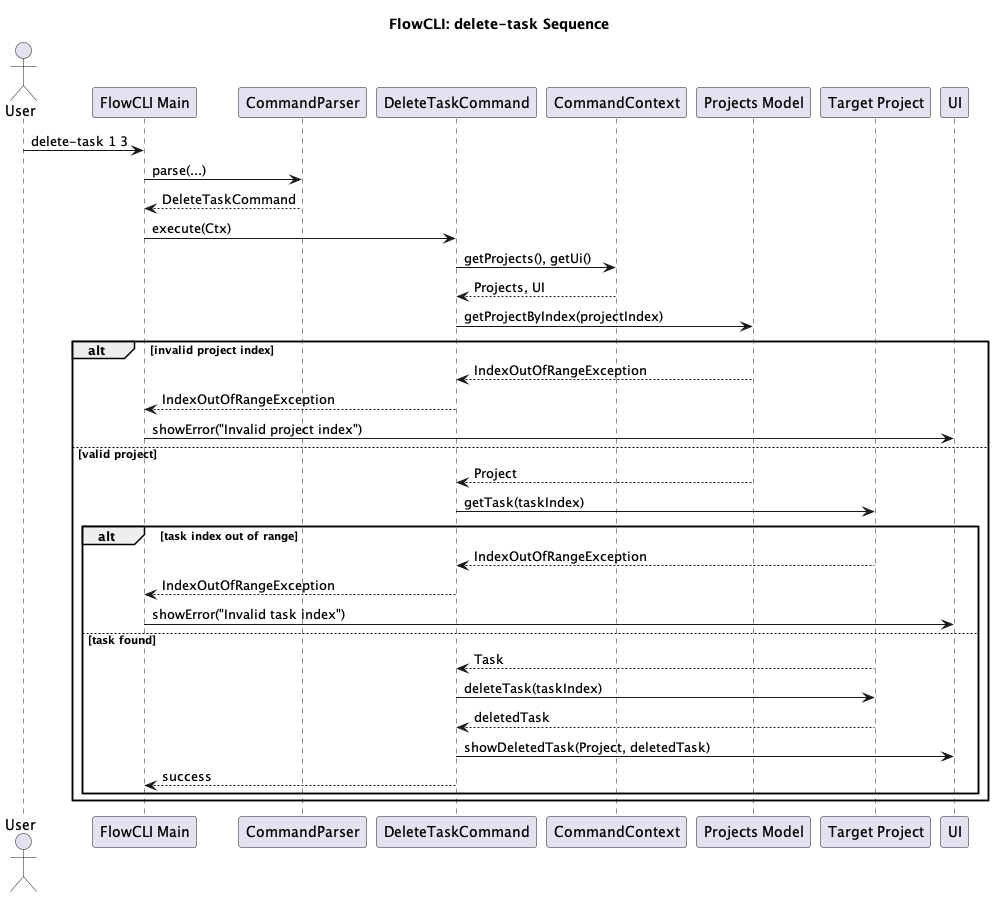
The sequence diagram below shows the workflow:
Implementation Details:
- The
CommandParsercreates aDeleteTaskCommandobject. DeleteTaskCommand#execute()validates the presence of the project index and task index.- It ensures the specified project exists and the task index is within the valid range.
- If valid, it calls
project.deleteTask()to remove the task from the project’sTaskList. - A success message, including the details of the deleted task, is shown to the user.
mark and unmark commands
These commands allow users to change the completion status of a task.
mark: Marks a task as done.unmark: Marks a task as not done.
Command format:
mark <projectIndex> <taskIndex>unmark <projectIndex> <taskIndex>
Examples:
mark 1 4— mark the fourth task in project 1 as completed once QA signs off.unmark 2 1— reopen the first task in project 2 when new changes are requested.
Typical use cases:
- Track daily progress by marking tasks complete immediately after finishing them.
- Reopen items that regress after code review, testing, or stakeholder feedback.
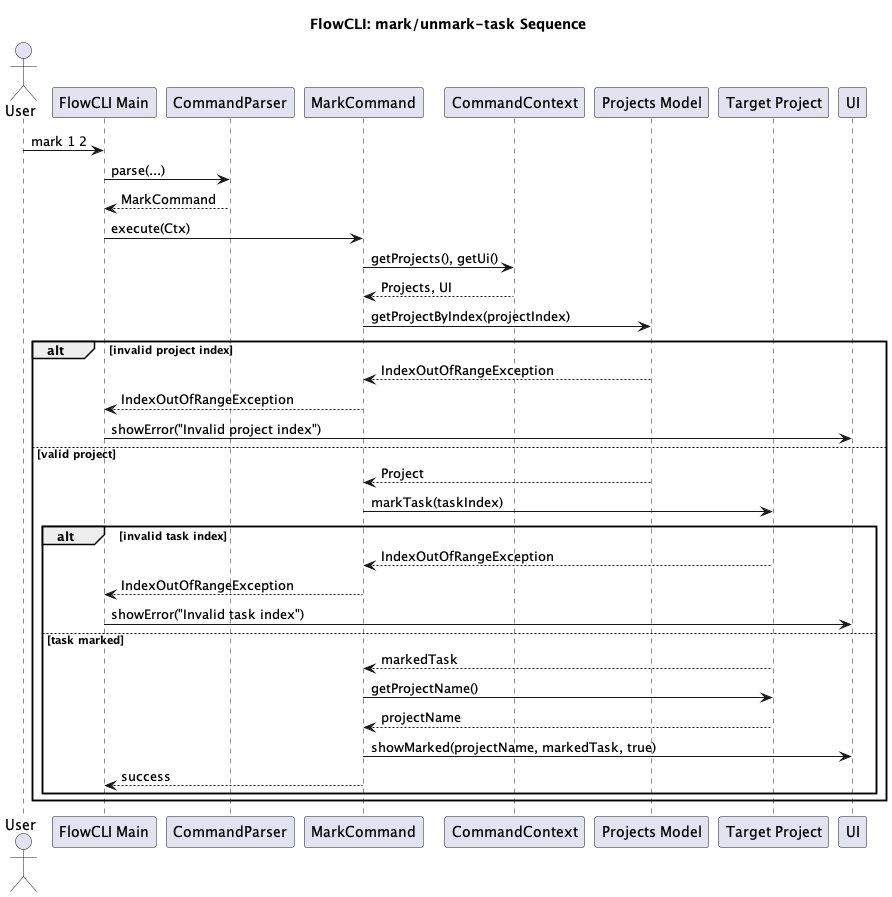
The process is illustrated in the following diagram:
Implementation Details:
MarkCommandorUnmarkCommandis instantiated by the parser.- The
execute()method validates the project and task index. - It retrieves the
Taskobject and calls itsmark()orunmark()method. - The command includes logic to prevent redundant operations (e.g., marking an already-marked task).
- The UI confirms that the task status has been updated.
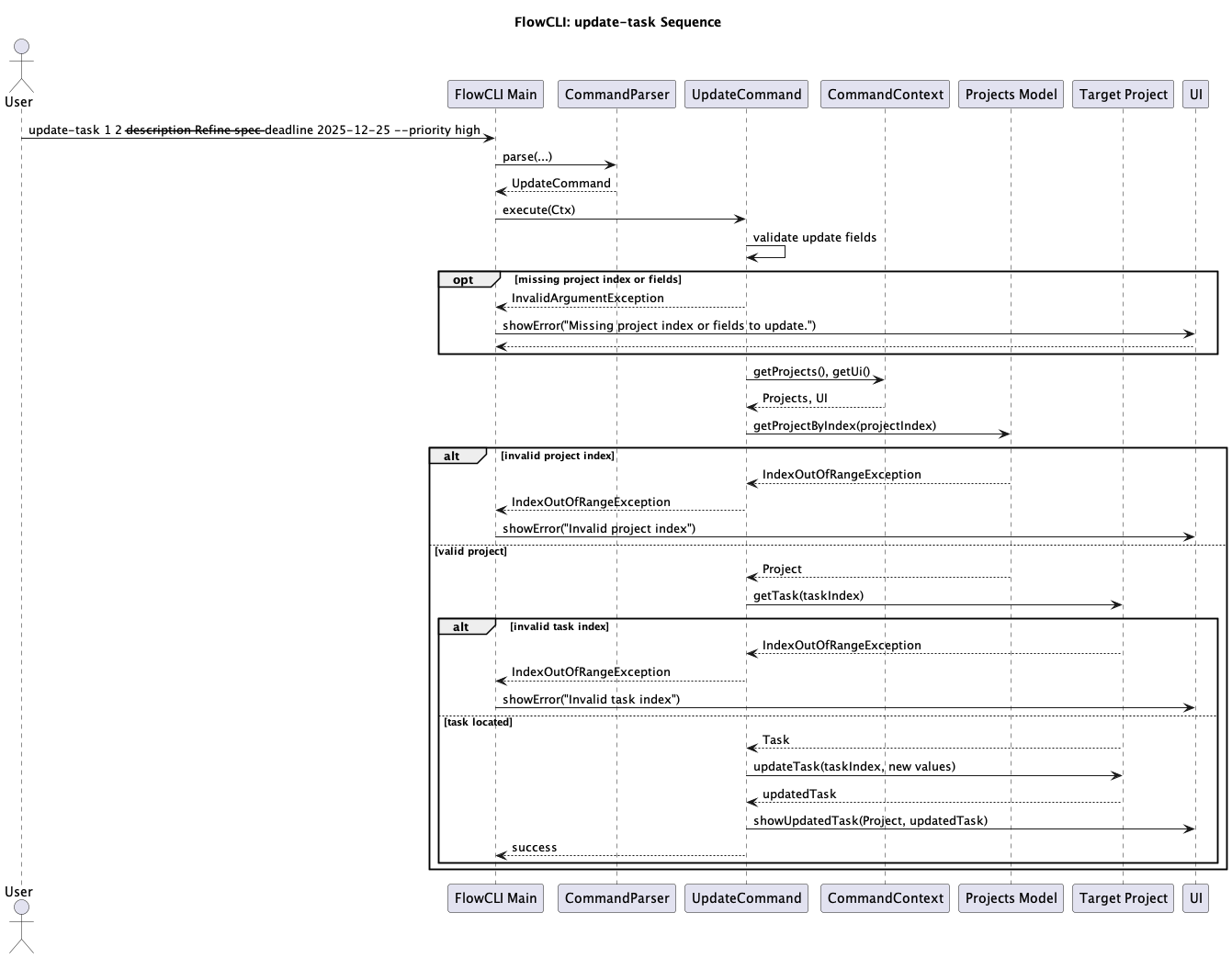
update-task command
The update-task command modifies the attributes of an existing task, such as its description, deadline, or priority.
Command format: update-task <projectIndex> <taskIndex> [--description <desc>] [--deadline <YYYY-MM-DD|none>] [--priority <level>]
Examples:
update-task 1 3 --deadline 2025-03-10 --priority mediumupdate-task 4 2 --description "Align scope with Design team"
Typical use cases:
- Adjust timelines after a change request shifts the expected delivery date.
- Refine task descriptions or priority following stakeholder feedback or scope updates.
The update process is shown below:
Implementation Details:
- The
UpdateCommandis responsible for parsing the various optional flags that specify which fields to update. - It validates the project and task index.
- It calls
project.updateTask(), passing the new values. TheupdateTaskmethod handles the logic of only changing the fields that were provided in the command. - The UI displays the updated task details.
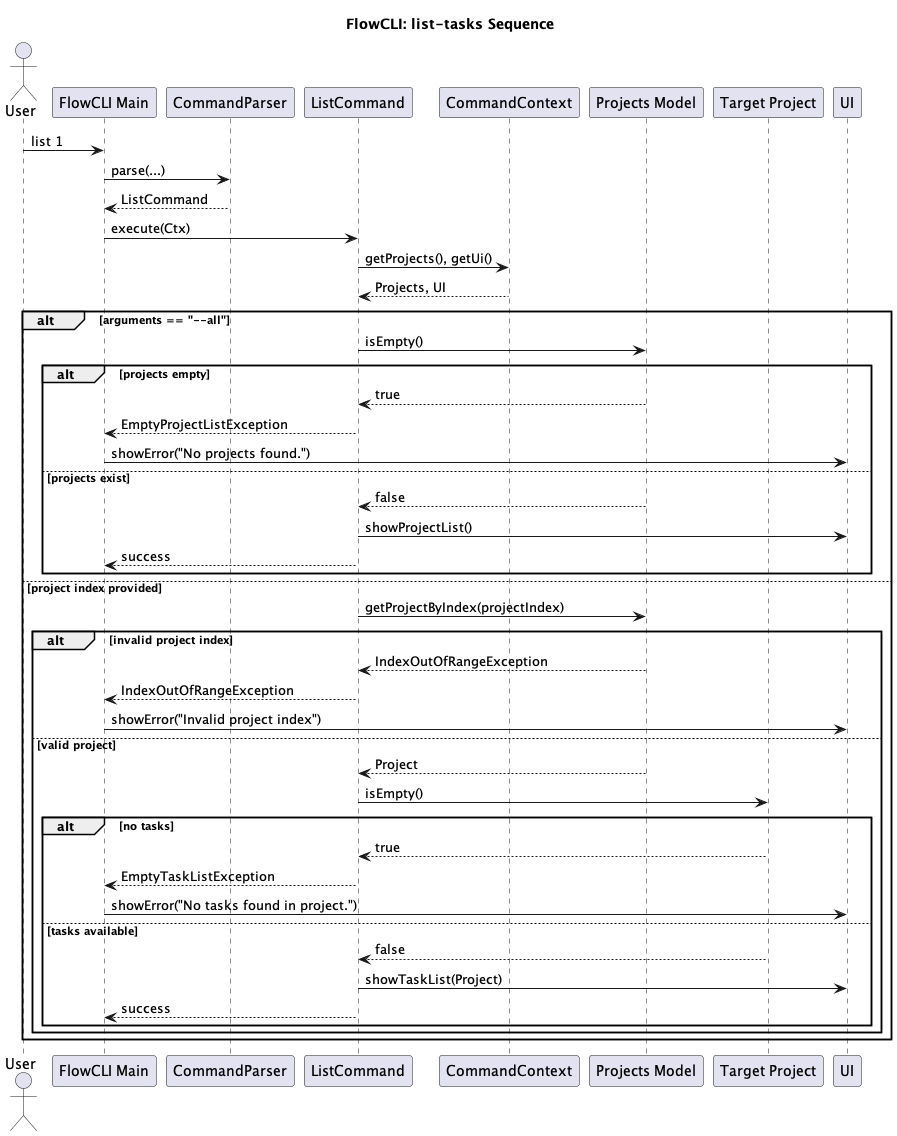
list command
The list command displays tasks. It can either list all tasks in all projects or list the tasks of a specific project.
Command format: list --all or list <projectIndex>
Examples:
list --all— review every project before the weekly sync.list 2— focus on outstanding work for project 2 while planning the day.
Typical use cases:
- Provide a consolidated snapshot of workload for progress reviews.
- Drill into a single project to decide the next actionable tasks.
The diagram below illustrates the listing process:
Implementation Details:
- The
ListCommandchecks if a project index or--allflag was provided. - Argument Validation:
- Checks for empty arguments (throws
MissingArgumentException) - If
--allflag, validates project list is not empty (throwsEmptyProjectListException) - If project index provided, validates the index and rejects unexpected extra parameters (e.g.,
list 1 extrathrows exception)
- Checks for empty arguments (throws
- If a valid project index is given, it finds the project and calls
ConsoleUito display only the tasks for that project. - If
--allflag is given, it iterates through the entireProjectListand instructs theConsoleUito display all projects and their associated tasks.
Project Management features by Xylon Chan
CreateCommand
The Create-project command is facilitated by ProjectListand it is accessed by CommandContext. It extends Command with the feature of reading the user’s project name input and creating a project entity.
Additionally , it implements the following operations:
ProjectList#getProject(String name)- returns the project if it exists, ornullif not found.ProjectList#addProject(String name)- adds a new project with the given name.ConsoleUi#showAddedProject()- notifies the user after successful creation.CommandContext#getProjects()- returns all the projects currently in the ProjectList
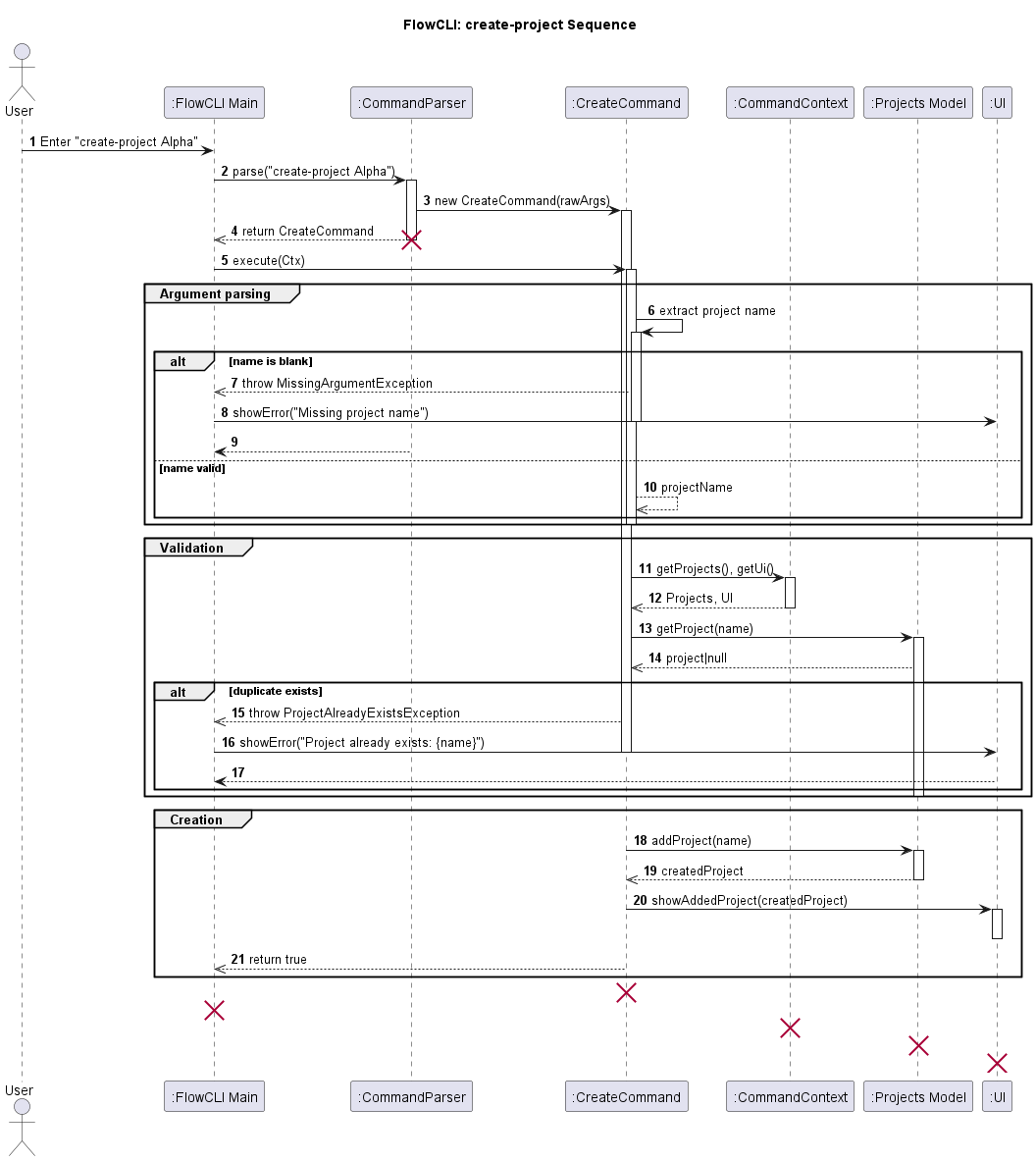
Given below is an example usage scenario and how the create-project feature behaves at each step
User Input: The user enters the create-project command with the project name (e.g., create-project Alpha).
Parsing: The CommandParser identifies the command as create-project and constructs a CreateCommand with the raw arguments.
Execution: The FlowCLI main loop invokes CreateCommand#execute(CommandContext). (Note: CreateCommand extends Command.)
Argument Parsing: Inside execute, CreateCommand extracts the project name from the arguments
Validation: The command validates that the name is non-blank; if blank, it throws MissingArgumentException. It then checks duplicates via context.getProjects().getProject(name) if present, it throws ProjectAlreadyExistsException.
Creating the Project: On success, the command calls context.getProjects().addProject(name) to persist the new project in the model.
UI Feedback: The command obtains the UI via context.getUi() and calls showAddedProject() (or the equivalent success method) to confirm creation to the user.
Return/Logging: The command returns true to signal success and logs at info/fine levels; failures log at warning and do not mutate the model.
Here is a sequence diagram illustrating the process:
Common Classes by Zhenzhao
The core data model of FlowCLI consists of four fundamental classes that represent the domain entities and their relationships. These classes form the foundation upon which all features are built.
Project, ProjectList, Task, and TaskList classes
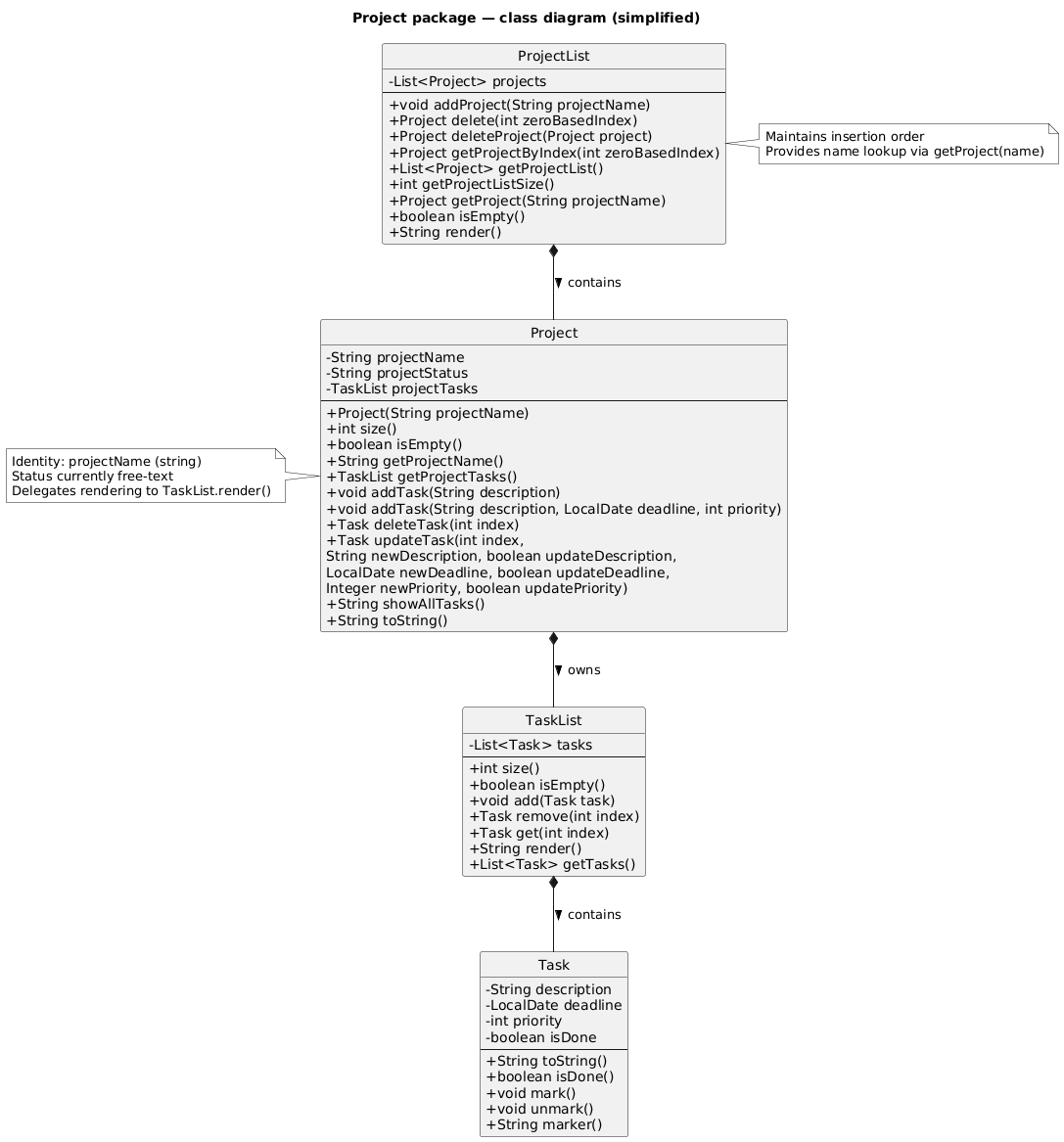
Class Relationships:
- ProjectList contains multiple Project instances
- Each Project contains a TaskList
- Each TaskList contains multiple Task instances
This hierarchical structure allows for organized task management within distinct projects, with clear ownership and encapsulation of responsibilities.
Project class
Overview
Represents a single project and encapsulates its name and task collection TaskList. Allows for adding/updatig/deleting tasks within a project without directly coordinating multiple lower-level classes.
Requirements
projectName is non null and should be non-blank when constructed
projectTasks is non null after construction
Helping classes
TaskListandTask(for managing per-project tasks).
-ProjectList (container) creates and returns Project instances.
API
Project(String projectName)— Constructor that constructs an empty project with the given name.String getProjectName()— returns the name of the project.TaskList getProjectTasks()— returns the tasks in that projectvoid addTask(String description)— adds a task.void addTask(String description, LocalDate deadline, int priority)— add a task with deadline and priorityTask deleteTask(int index) — remove and return the task at index.Task updateTask(int index, String newDescription, boolean updateDescription, LocalDate newDeadline, boolean updateDeadline, Integer newPriority, boolean updatePriority)— Updates the task description , deadline and priorityString showAllTasks()— render the project’s tasks to a printable string (delegates toTaskList.render()).String toString()— printable representation of the project header + rendered tasks.
ProjectList class
Overview
An ArrayList container of Project instances offering indexed access, name-lookup, and simple rendering. This is the central point for commands to manipuate the collection of projects (e.g., create-project, delete-project, list-projects).
Requirements
projects is non null after construction
Helping classes
Project- element sotred in the list.
API
void addProject(String projectName)— appends a new Project.Project delete(int zeroBasedIndex)— delete by index, return the removed Project for confirmation.Project deleteProject(Project project)— remove by identity and returns the removed projectProject getProjectByIndex(int zeroBasedIndex)— indexed accessor.List<Project> getProjectList()— list the projects by name currently in the listint getProjectListSize()— returns the number of projects.Project getProject(String projectName)— returns the project via name-based lookupString render()— concatenate each project’s toString() into a printable block.
Data Processing
Task Sorting Algorithm by Yao Xiang
The sorting algorithm supports sorting tasks by deadline or priority in ascending/descending order:

Algorithm Details:
- Time Complexity: O(n log n) using Java’s built-in sort
- Space Complexity: O(n) for task list copy
- Deadline Handling: Tasks without deadlines are sorted last in ascending order
- Priority Mapping: High(1) > Medium(2) > Low(3)
Task Filtering Algorithm by Yao Xiang
The filtering algorithm supports filtering tasks by priority level and/or project name:
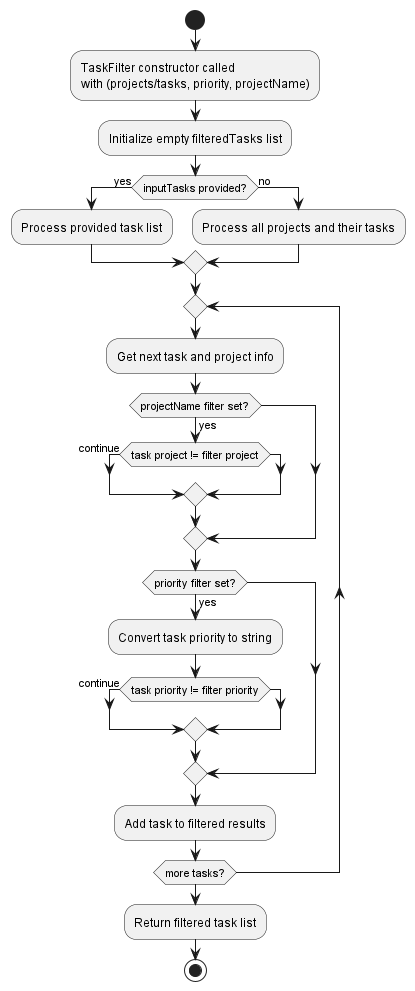
Algorithm Details:
- Time Complexity: O(n) linear scan through all tasks
- Space Complexity: O(m) where m is number of matching tasks
- Case Insensitive: Project name and priority filtering ignore case
- Multiple Filters: Can combine priority and project name filters
Data Persistence by Sean Lee
Export Algorithm by Sean Lee
The export algorithm supports saving project and task data to text files with filtering and sorting capabilities:
Architecture Overview
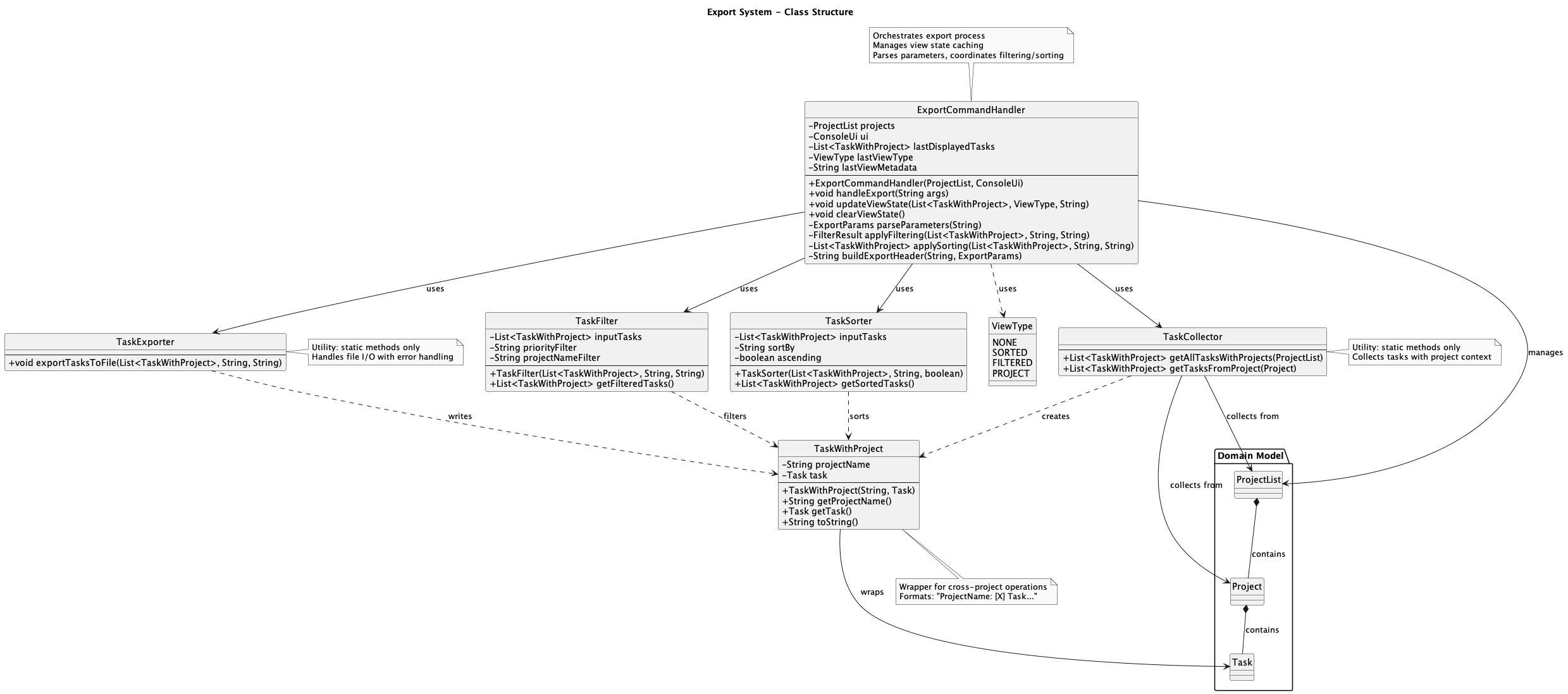
Key Components:
- ExportCommandHandler - Orchestrates export process, parameter parsing, and view state management
- TaskCollector - Utility class for aggregating tasks from projects with project context
- TaskExporter - Utility class for file I/O operations with comprehensive error handling
- TaskWithProject - Wrapper class enabling cross-project operations
- TaskFilter - Filters tasks by priority and/or project name
- TaskSorter - Sorts tasks by deadline or priority
Design Principles:
- Separation of Concerns: Collection (TaskCollector), I/O (TaskExporter), and orchestration (ExportCommandHandler) are separate
- Utility Pattern: TaskCollector and TaskExporter are final classes with static methods only
- Reusability: TaskWithProject enables cross-project operations across filtering, sorting, and listing
- Error Isolation: All I/O exceptions are translated to FileWriteException with user-friendly messages
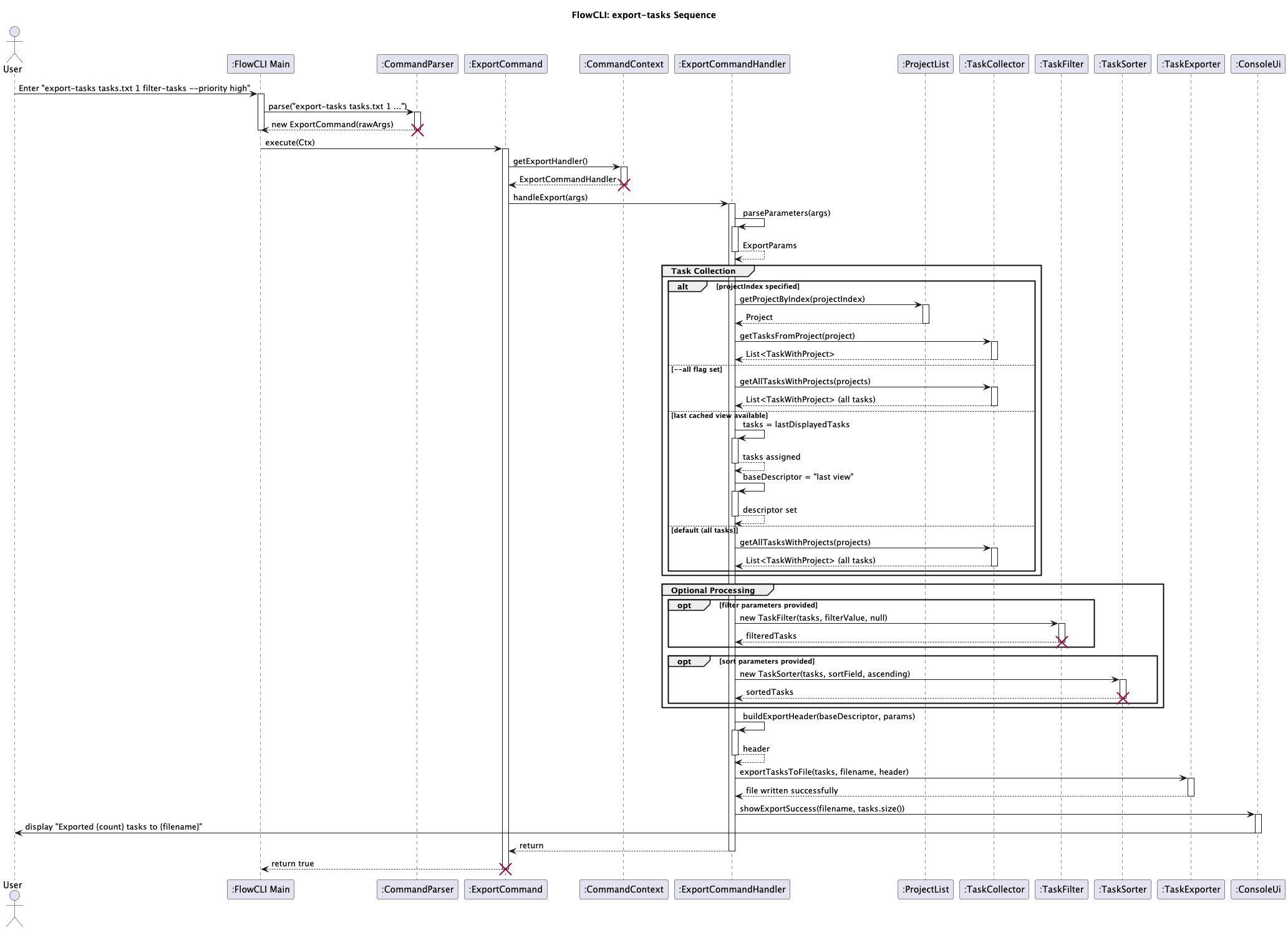
Export Workflow
The following sequence diagram illustrates the export workflow:
TaskCollector
Utility class providing static methods to collect tasks from projects while preserving project association:
getAllTasksWithProjects(ProjectList projects)- ReturnsList<TaskWithProject>of all tasks from all projects (O(n) time/space)getTasksFromProject(Project project)- ReturnsList<TaskWithProject>of tasks from a specific project (O(m) time/space)
Each task is wrapped in TaskWithProject, which formats as "ProjectName: [X] Task Description (Due: YYYY-MM-DD) [priority]". The class is reusable across filtering, sorting, and listing operations.
TaskExporter
Utility class that writes tasks to text files with comprehensive error handling:
Method: exportTasksToFile(List<TaskWithProject> tasks, String filename, String header) throws FileWriteException
File Format:
<Header Text>
================

ProjectName: [X] Task Description (Due: YYYY-MM-DD) [priority]
ProjectName: [ ] Another Task [priority]
Uses try-with-resources for automatic cleanup. All I/O exceptions are translated to FileWriteException with user-friendly messages covering: permission denied, directory not found, disk space issues, file locking, path length limits, read-only filesystem, and security policy violations. Error messages follow the pattern "'<filename>': <description>" with actionable suggestions.
Integration with ExportCommandHandler
The export workflow consists of 5 steps:
- Parameter Parsing - Validates filename, project selection, filters, and sorting options
-
Task Collection - Uses
TaskCollectorbased on parameters with 4 strategies:if (params.forceAll) { tasks = TaskCollector.getAllTasksWithProjects(projects); } else if (params.projectIndex != null) { tasks = TaskCollector.getTasksFromProject(projects.getProjectByIndex(params.projectIndex)); } else if (!params.hasFilterOrSort() && lastViewType != ViewType.NONE && !lastDisplayedTasks.isEmpty()) { tasks = new ArrayList<>(lastDisplayedTasks); // Export last cached view (from sort/filter) } else { tasks = TaskCollector.getAllTasksWithProjects(projects); // Default: all tasks }Last View Caching: View state is stored in
ExportCommandHandlerinstance fields (lastDisplayedTasks,lastViewType,lastViewMetadata). Thesort-tasksandfilter-taskscommands update this state viaupdateViewState(). When exporting without parameters, it automatically exports the cached view if available. - Filtering/Sorting - Applies
TaskFilterandTaskSorterif specified in export command - File Export - Calls
TaskExporter.exportTasksToFile()with header - User Feedback - Displays success via
ConsoleUi.showExportSuccess()
Design Benefits: Separation of concerns, reusability across operations, error isolation, independent testability, and seamless integration with view commands (sort/filter) through view state tracking.
Data Storage by Zhenzhao
The storage system provides persistent data storage for FlowCLI, automatically saving and loading all projects and tasks between sessions. It implements robust error handling, data validation, and atomic write operations to ensure data integrity.
Key Components:
- Storage - Main storage class handling save/load operations, file I/O, data validation, and corruption handling
- DataCorruptedException - Exception thrown when the data file format is invalid or corrupted
- StorageException - Exception thrown when file I/O operations fail (permissions, disk space, etc.)
Architecture Overview:
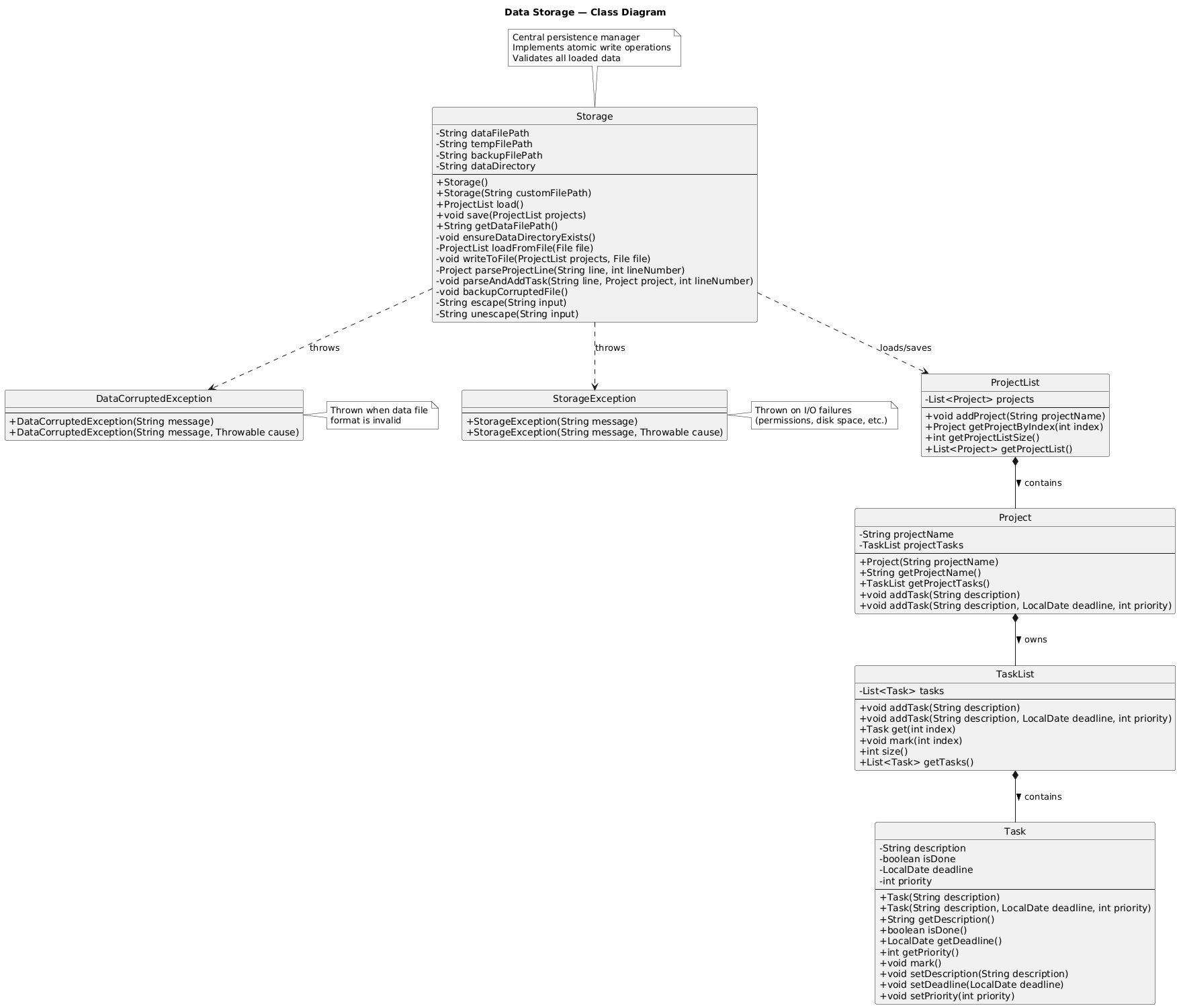
The Storage class acts as the central persistence manager, coordinating file I/O operations and data validation. It maintains relationships with the domain model (ProjectList, Project, TaskList, Task) for serialization and handles exceptional cases through specialized exception types.
Storage Location:
Data is saved to ./data/flowcli-data.txt (relative to where the JAR is executed).
Data Format:
The storage uses a custom delimiter-based format optimized for parsing and validation:
PROJECT|Project Name
TASK|isDone|description|deadline|priority
Where:
PROJECT|<name>- Project header lineTASK|<0/1>|<description>|<YYYY-MM-DD or null>|<1-3>- Task entry (0=not done, 1=done; 1=low, 2=medium, 3=high priority)- Special characters (
|, newlines) are escaped using<PIPE>and<NEWLINE>markers
Implementation Details:
-
On Startup (FlowCLI constructor):
- Storage object is created
load()is called to read data from file- If file doesn’t exist: starts with empty ProjectList (first run)
- If file is empty: starts with empty ProjectList
- If file is corrupted: backs up to
.backupfile, shows warning, starts with empty ProjectList - If I/O error occurs: shows warning, starts with empty ProjectList
- Loaded data is used to initialize the application state
-
On Exit (ByeCommand execution):
save()is called with current ProjectList- Data is written to temporary file first (
flowcli-data.tmp) - Temporary file is atomically renamed to
flowcli-data.txt(prevents corruption if interrupted) - If save fails: user is prompted to retry up to 3 times
- If all retries fail: warning is shown, application exits without saving
-
Data Validation During Load:
- Every line is validated against expected format
- Project names cannot be empty
- Task fields must have exactly 4 pipe-delimited values
isDonemust be 0 or 1- Dates must be valid ISO format (YYYY-MM-DD) or “null”
- Priority must be 1, 2, or 3
- Tasks must follow a PROJECT header (cannot appear before any project)
- Any validation failure triggers DataCorruptedException and backup
-
Special Character Handling:
- Pipe characters
|in user input are escaped to<PIPE> - Newlines in user input are escaped to
<NEWLINE> - The escape sequences themselves are double-escaped (
<PIPE>becomes<PIPE><PIPE>) - Unescaping happens in reverse order during load
- Pipe characters
Error Handling:
| Error Type | Handling | User Impact |
|---|---|---|
| File not found (first run) | Silent, start with empty list | None |
| Empty file | Silent, start with empty list | None |
| Corrupted data | Backup to .backup, show warning, start with empty list |
Warning message |
| I/O error (read) | Show warning, start with empty list | Warning message |
| I/O error (write) | Prompt for retry (3 attempts), allow exit without saving | Error message + retry prompt |
| Permission denied | Show specific error, prompt for retry or exit | Error message |
| Disk full | Show specific error, prompt for retry or exit | Error message |
Example Storage File:
PROJECT|CS2113T Project
TASK|1|Complete assignment|2025-12-31|3
TASK|0|Study for exam|null|2
PROJECT|Personal Tasks
TASK|0|Buy groceries|2025-11-10|1
TASK|1|Call dentist|null|2
Edge Cases Handled:
- Empty project list (no projects/tasks)
- Projects with no tasks
- Tasks with no deadlines (null)
- Tasks with empty descriptions
- Special characters in project/task names
- Large datasets (100+ projects, 1000+ tasks)
User Interface
Interactive Mode by Yao Xiang
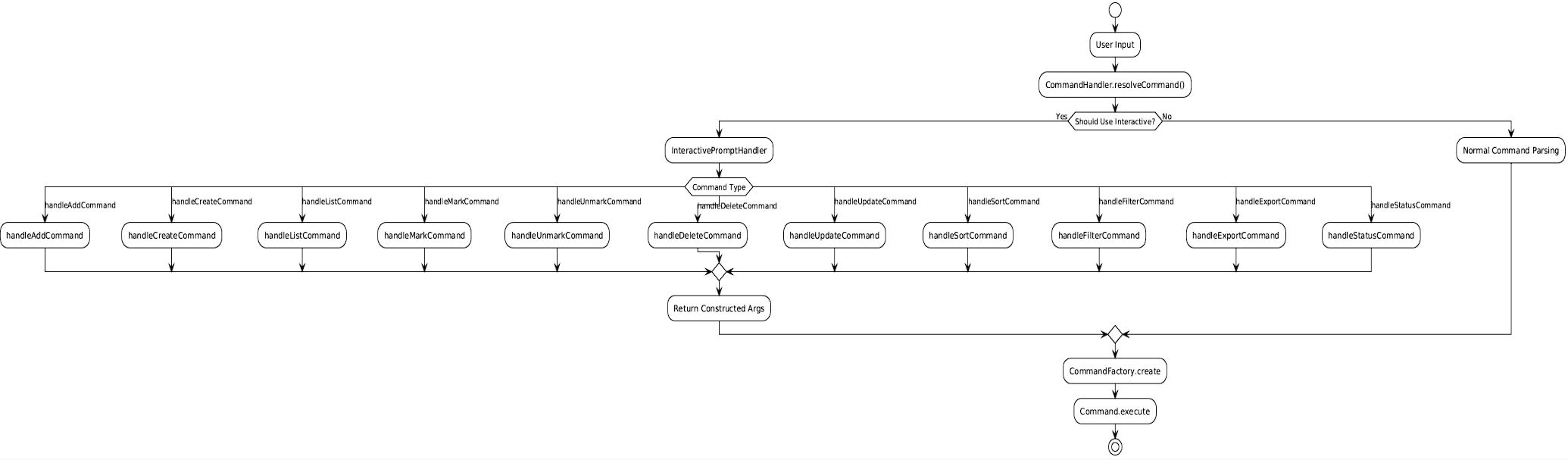
Implementation Overview
The interactive mode transforms single-word commands into guided conversations. When a user types “add” without arguments, the system prompts for project selection, task details, and optional fields.
Command Processing Sequence by Yao Xiang
The overall command processing workflow shows how user input flows through the system components:
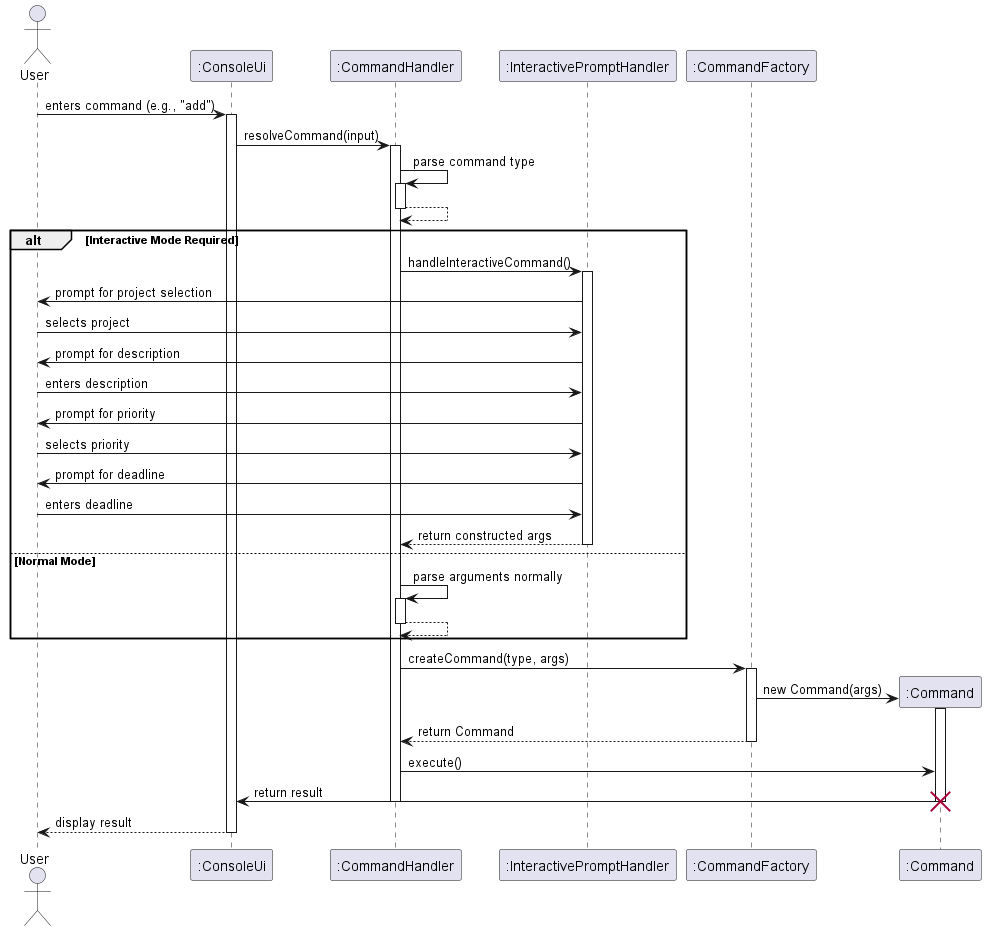
Architecture Flow: User input → CommandHandler → InteractivePromptHandler (if needed) → CommandFactory → Command execution → Result display.
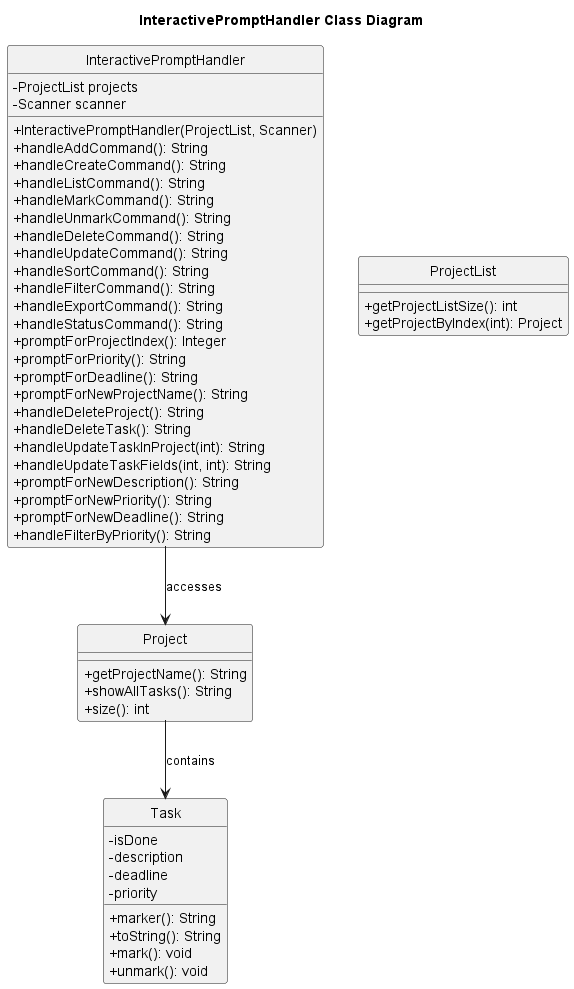
Class Diagram: InteractivePromptHandler Structure by Yao Xiang
Interactive Mode Detection by Yao Xiang
The CommandHandler.shouldUseInteractiveMode() method determines when to trigger interactive mode:
private boolean shouldUseInteractiveMode(CommandParser.ParsedCommand parsed) {
    switch (parsed.getType()) {
    case ADD_TASK:
        return parsed.getArguments().trim().isEmpty();
    case CREATE_PROJECT:
        return parsed.getArguments().trim().isEmpty();
    case LIST:
        return parsed.getArguments().trim().isEmpty();
    case MARK:
        return parsed.getArguments().trim().isEmpty();
    case UNMARK:
        return parsed.getArguments().trim().isEmpty();
    case DELETE:
        return parsed.getArguments().trim().isEmpty();
    case UPDATE:
        return parsed.getArguments().trim().isEmpty();
    case SORT:
        return parsed.getArguments().trim().isEmpty();
    case FILTER:
        return parsed.getArguments().trim().isEmpty();
    case EXPORT:
        return parsed.getArguments().trim().isEmpty();
    case STATUS:
        return parsed.getArguments().trim().isEmpty();
    default:
        return false;
    }
}
Decision Rationale: Interactive mode is triggered for main commands with empty arguments, preserving backward compatibility.
Status Display System by Zhenzhao
The status display system provides users with visual feedback on project progress through completion tracking, progress bars, and motivational messages. It separates analysis logic from presentation concerns for maintainability.
Architecture Overview
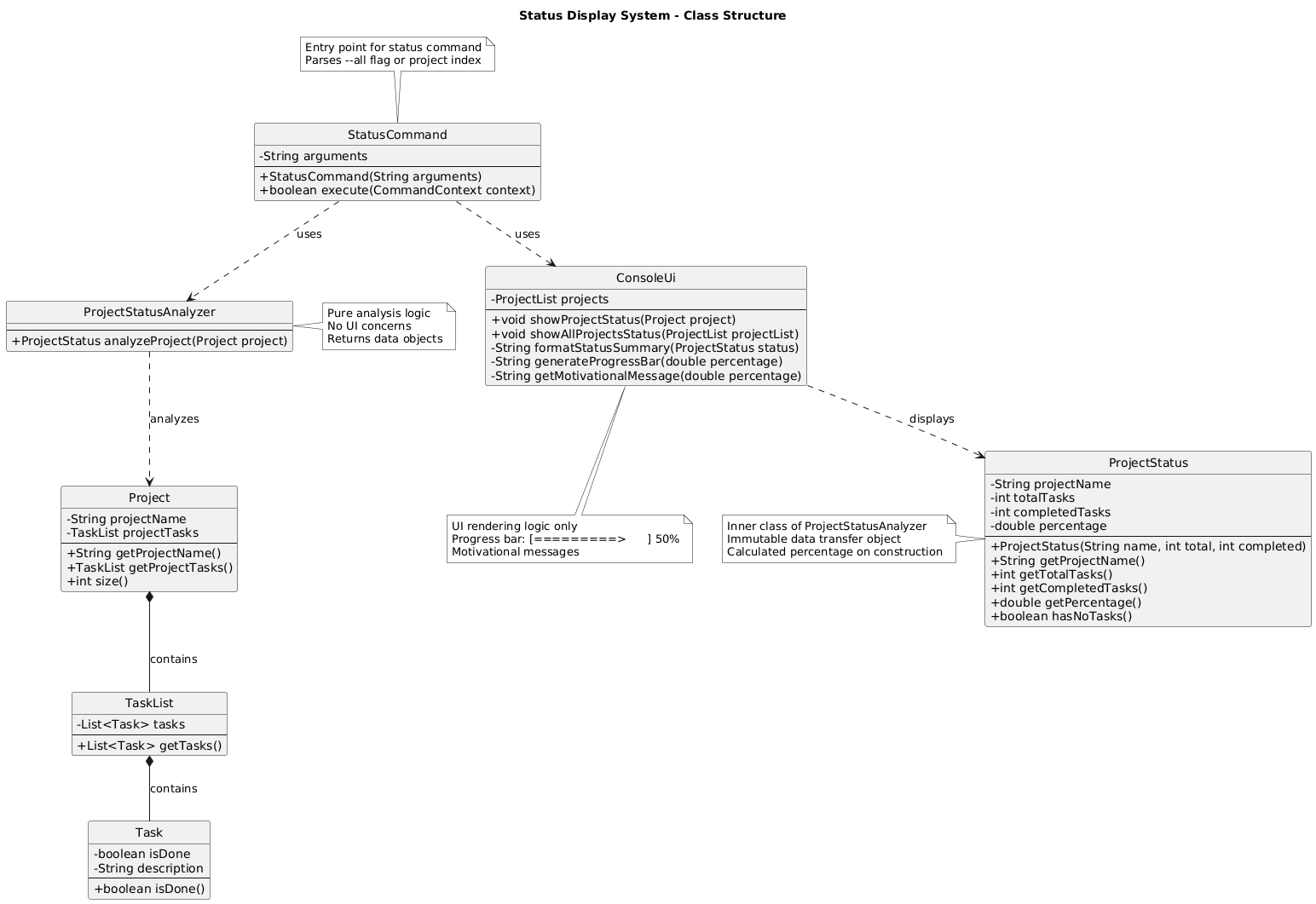
Key Components:
- StatusCommand - Entry point that parses arguments and coordinates status display
- ProjectStatusAnalyzer - Pure analysis logic that calculates completion statistics
- ProjectStatus - Immutable data transfer object holding project statistics
- ConsoleUi - Renders status information with progress bars and messages
Design Principles:
- Separation of Concerns: Analysis logic (ProjectStatusAnalyzer) is separate from UI rendering (ConsoleUi)
- Data Transfer Objects: ProjectStatus acts as an immutable container for statistics
- Single Responsibility: Each class has one clear purpose in the status display pipeline
Status Command Execution Flow

The above diagram shows the execution flow for displaying a specific project’s status (e.g., status 1). The diagram focuses on the main success path for clarity.
Execution Flow:
-
Command Parsing:
- User enters command (e.g., “status 1”)
- CommandHandler delegates to CommandParser
- CommandParser splits command word and arguments, returns ParsedCommand
- CommandHandler creates StatusCommand with arguments
-
Argument Processing:
- StatusCommand validates arguments are not empty
- Creates ArgumentParser to parse project identifier
- ArgumentParser resolves project index/name to Project object
- ArgumentParser is destroyed after returning the parsed result
-
Status Analysis:
- StatusCommand calls ConsoleUi to display project status
- ConsoleUi delegates to ProjectStatusAnalyzer for analysis
- ProjectStatusAnalyzer:
- Retrieves project’s TaskList
- Counts completed tasks (where
isDone() == true) - Calculates completion percentage
- Returns ProjectStatus data object
-
UI Rendering:
- ConsoleUi formats the status output:
formatStatusSummary(): Creates summary text (e.g., “3/5 tasks completed, 60%”)generateProgressBar(): Creates visual progress bar[=========> ] 60%getMotivationalMessage(): Selects message based on completion percentage
- Displays formatted output to user
- ConsoleUi formats the status output:
-
Cleanup:
- StatusCommand returns success flag
- StatusCommand is destroyed after execution
Note: The command also supports displaying all projects with status --all, which follows a similar flow but iterates through all projects in the ProjectList.
Task Status Markers:
Individual tasks display completion status using visual markers in list views:
public String marker() {
    return isDone ? "[X]" : "[ ]";
}
Display Example:
CS2113T Project - Project Status
3/5 tasks completed, 60%
[========================>               ] 60%
We are on the right track, keep completing your tasks!
Motivational Messages:
The system provides contextual encouragement based on progress:
- ≤25%: “You are kinda cooked, start doing your tasks!”
- ≤50%: “You gotta lock in and finish all tasks!”
- ≤75%: “We are on the right track, keep completing your tasks!”
- >75%: “We are finishing all tasks!! Upzzz!”
Status Types:
- Single Project Status (
status <projectIndex>): Shows detailed status for one project - All Projects Status (
status --all): Shows summary status for all projects in a compact format
Interactive Command Flows by Yao Xiang
Add Command Flow by Yao Xiang
The add command guides users through project selection, task description, priority, and optional deadline:
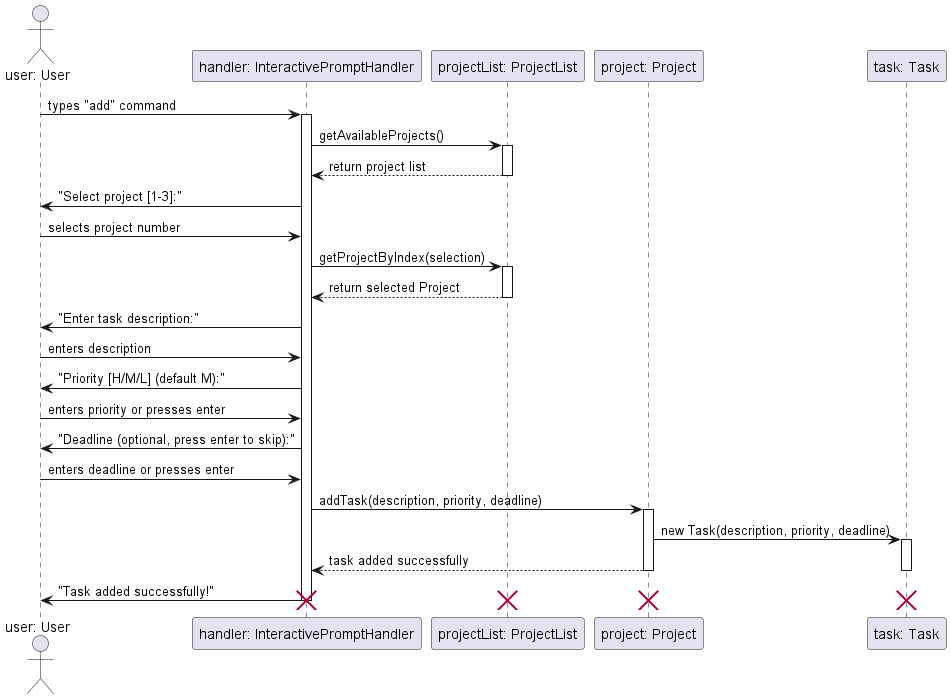
Key Features:
- Project validation with range checking
- Required task description with empty string rejection
- Optional priority (defaults to “medium”)
- Optional deadline with YYYY-MM-DD format validation
Add Command State Flow by Yao Xiang
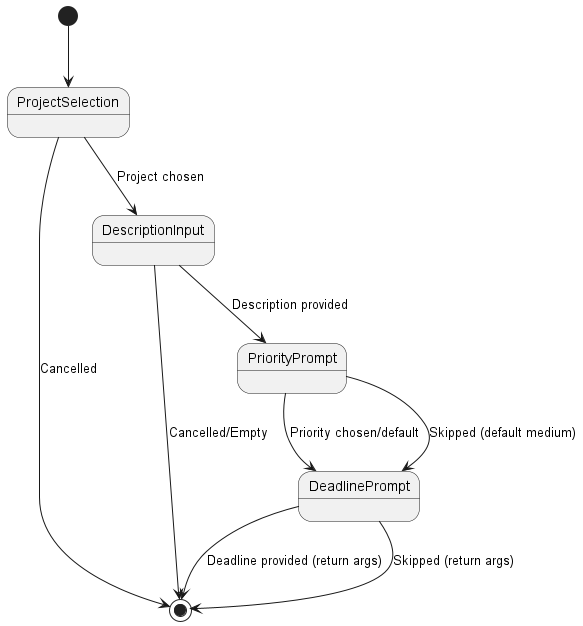
Optional Fields: Priority and deadline can be skipped, defaulting to “medium” and no deadline respectively.
Mark/Unmark Command Flows by Yao Xiang
Mark and unmark commands share similar logic but with different validation:
public String handleMarkCommand() {
    Integer projectSelection = promptForProjectIndex();
    if (projectSelection == null) return null;

    // Display tasks with status markers
    System.out.println("Hmph, which tasks do you want to mark as done in " + projectName + ":");
    for (int i = 0; i < project.size(); i++) {
        var task = project.getProjectTasks().get(i);
        String status = task.isDone() ? "x" : " ";
        System.out.println((i + 1) + ". [" + status + "] " + task.getDescription());
    }

    // Multiple task selection with comma separation
    String input = scanner.nextLine().trim();
    String[] indices = input.split(",");
    // ... validation and construction
}
Mark vs Unmark Validation:
- Mark: Prevents marking already completed tasks
- Unmark: Prevents unmarking already incomplete tasks
- Error Message: “Your task is not even marked, what do you want me to unmark!”
Delete Command Flow by Yao Xiang
Delete command uses a two-stage approach: type selection then specific item selection with confirmation:
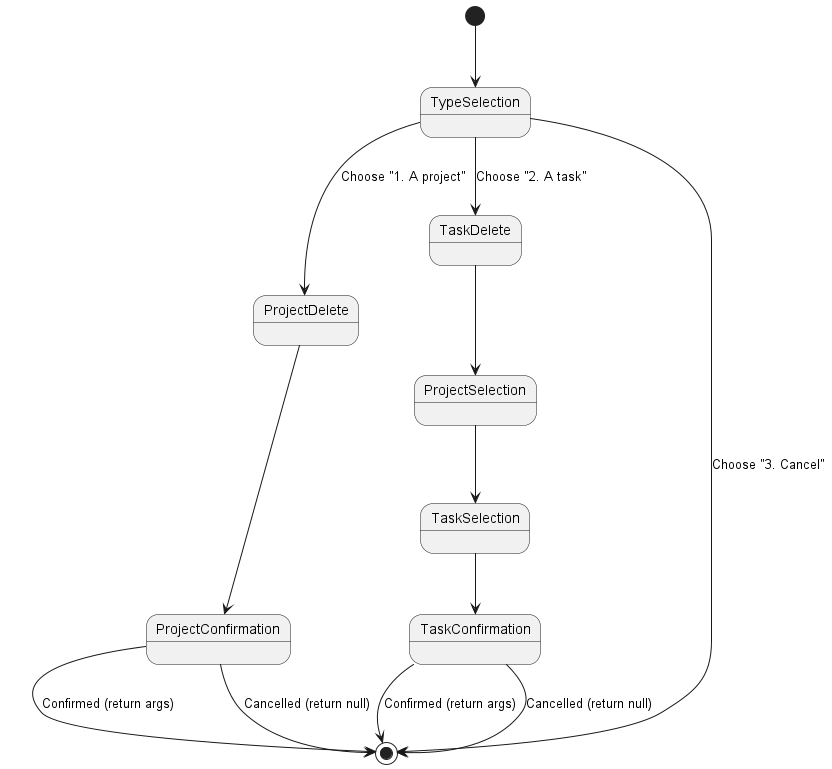
Safety Features:
- Confirmation prompts for all destructive operations
- Clear project/task listing before selection
- Case-insensitive confirmation (“y”, “yes”, “n”, “no”)
Update Command Flow by Yao Xiang
Update command implements recursive field updates allowing multiple changes in one session:
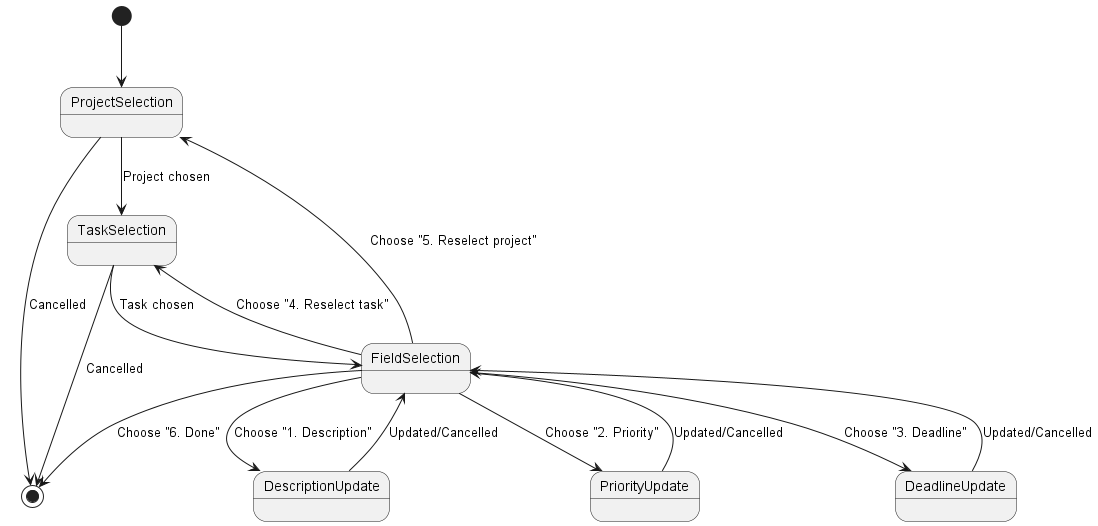
Recursive Design: Users can update multiple fields without restarting the flow, with options to reselect tasks/projects or exit at any point.
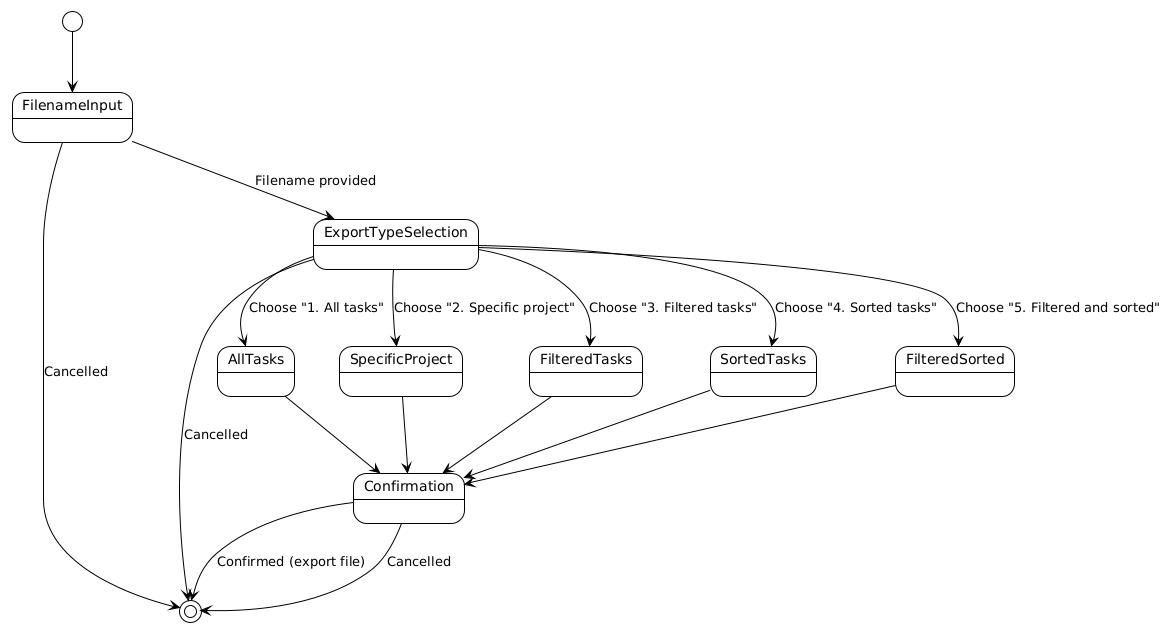
Export Command Flow by Yao Xiang
The export command provides comprehensive data export capabilities with multiple filtering and sorting options. Users can export their project and task data in various formats and configurations.
Key Features:
- Multiple Export Types: All tasks, specific projects, filtered tasks, sorted tasks, or combined filtered and sorted exports
- Flexible Output: Supports various file formats (typically CSV or JSON)
- Data Filtering: Can filter by project name, priority levels, or completion status
- Data Sorting: Can sort by deadline, priority, or other task attributes
- File Naming: Custom filename specification for organized data management
Export Options:
- All Tasks: Exports every task across all projects
- Specific Project: Exports only tasks from a selected project
- Filtered Tasks: Exports tasks matching specific criteria (priority, project, status)
- Sorted Tasks: Exports tasks in sorted order (by deadline, priority, etc.)
- Filtered and Sorted: Combines filtering and sorting for precise data extraction
Create Command Flow by Yao Xiang
Create command prompts for a new project name with validation:
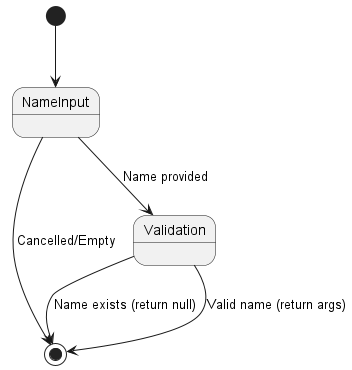
Validation: Checks for empty names and duplicate project names.
Mark/Unmark Command Flows by Yao Xiang
Mark and unmark commands follow identical selection flow with different validation:
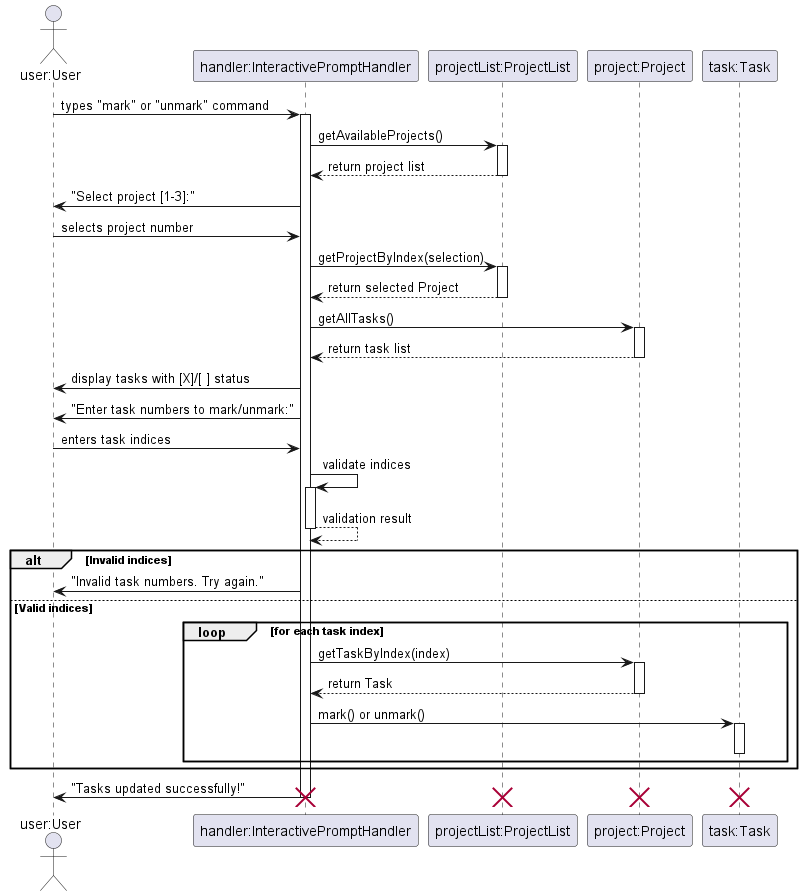
Shared Logic: Both commands use identical project/task selection but different validation rules.
Sort Command Flow by Yao Xiang
Sort command offers field and order selection:
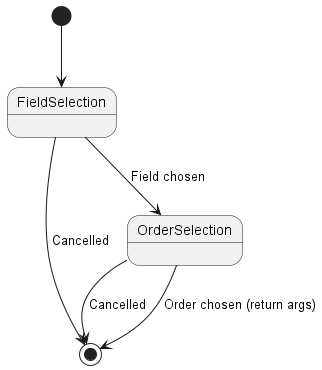
Simple Flow: Two sequential choices with no complex validation.
Filter Command Flow by Yao Xiang
Filter command offers priority level selection:
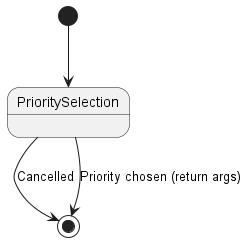
Single Choice: Simple selection from three priority options.
List Command Flow by Yao Xiang
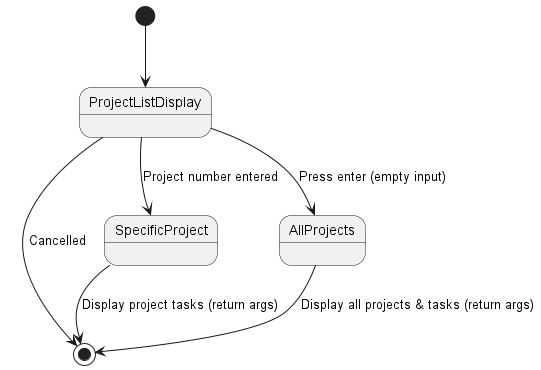
Display Logic: Shows numbered project list, then either displays tasks for selected project or all projects with all tasks.
Status Command Flow by Yao Xiang
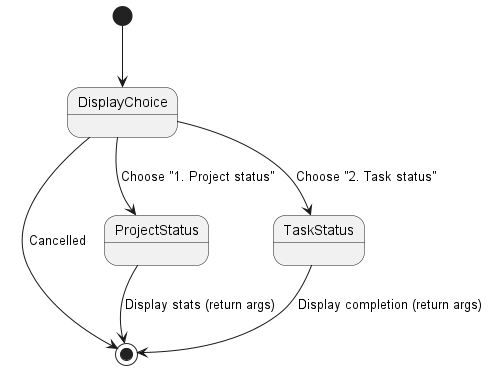
Status Types: Shows either project-level statistics or task completion summaries.
Product scope
Target user profile
Individual student developers working on their own coursework, capstones, hackathons, or any other related projects that require task management to streamline their workflow.
Value proposition
FlowCLI addresses the challenge of managing complex academic or personal projects by providing a streamlined, command-line interface for task and project organization. It helps student developers maintain focus, track progress, and efficiently handle multiple assignments or project phases without the overhead of graphical user interfaces. By offering quick task creation, flexible filtering, and clear status overviews, FlowCLI ensures that users can dedicate more time to coding and less to administrative overhead, ultimately boosting productivity and reducing stress.
User Stories
| Version | As a … | I want to … | So that I can … |
|---|---|---|---|
| v1.0 | new user | see usage instructions | refer to them when I forget how to use the application |
| v1.0 | user | find a to-do item by name | locate a to-do without having to go through the entire list |
| v1.0 | user | create and manage projects and tasks | organize my work and track progress efficiently |
| v1.0 | user | add, mark, unmark, delete, and update tasks | keep my task list accurate and up-to-date |
| v1.0 | user | view, filter, and sort tasks | focus on relevant tasks and prioritize my workload |
| v1.0 | user | export my tasks | backup my data or share it with others |
| v2.0 | user | use interactive prompting for commands | be guided through complex commands easily |
| v2.0 | user | check the status of my projects and tasks | get a quick overview of my progress and workload |
Non-Functional Requirements by Zhenzhao
-
Performance
- The application should respond to user commands within 500ms under normal operating conditions.
- Loading and parsing project data should complete within 1 second for up to 100 projects with 1000 tasks total.
- Sorting and filtering operations should complete within 200ms for typical datasets (up to 500 tasks).
-
Usability
- The application should be usable by users with basic command-line knowledge without requiring extensive training.
- Interactive mode prompts should guide users through command execution with clear, numbered options.
- Error messages should be descriptive and suggest corrective actions where applicable.
- All commands should have both short-form (for experienced users) and interactive mode (for new users).
-
Reliability
- The application should handle invalid inputs gracefully without crashing.
- All data validation should occur before any state changes to maintain data integrity.
- Error handling should prevent data corruption in edge cases (e.g., concurrent file access, invalid date formats).
-
Portability
- The application should run on any platform with Java 11 or higher installed (Windows, macOS, Linux).
- No platform-specific dependencies should be required beyond the Java Runtime Environment.
- File paths should use platform-independent representations where possible.
-
Maintainability
- Code should follow standard Java coding conventions and style guidelines.
- All public methods and classes should include Javadoc documentation.
- The codebase should maintain clear separation of concerns between UI, logic, and model layers.
- Each command should be implemented as a separate, testable class extending the Command base class.
-
Scalability
- The application should handle at least 50 projects with 20 tasks each without performance degradation.
- Memory usage should remain under 100MB for typical usage scenarios.
-
Security
- User input should be validated and sanitized to prevent command injection or malicious input.
- File operations should verify file paths to prevent unauthorized access to system files.
-
Compatibility
- The application should be compatible with common terminal emulators (Command Prompt, PowerShell, Terminal, Bash).
- Text output should be compatible with standard terminal character encoding (UTF-8).
Glossary
- CLI (Command-Line Interface) - A text-based interface used to operate software and operating systems.
- Task - A unit of work within a project, often with a description, deadline, and priority.
- Project - A collection of related tasks, representing a larger initiative or goal.
- Interactive Mode - A mode of operation where the CLI guides the user through command inputs with prompts.
- Command Pattern - A behavioral design pattern in which an object is used to encapsulate all information needed to perform an action or trigger an event at a later time.
- NFR (Non-Functional Requirement) - Requirements that specify criteria that can be used to judge the operation of a system, rather than specific behaviors (e.g., performance, reliability, usability).
Instructions for manual testing
These instructions will guide you through comprehensive manual testing of FlowCLI, including both inline command usage and interactive mode functionality.
Prerequisites
- Ensure you have Java 17 or higher installed
- Ensure you have Gradle installed
Setup Steps
-
Build the application:
./gradlew build -
Locate the JAR file:
- Navigate to
build\libs\ - Copy the full path of
flowcli.jar
- Navigate to
-
Run the application:
java -jar <full-path-to-flowcli.jar>
Sample Data Setup
-
Load sample data: Copy and paste the following commands to populate the application with sample data: (no need to copy paste one at a time)
create-project "CS2113T Project"
create-project "Internship Hunt"
create-project "Household Chores"
create-project "Fitness Plan"
create-project "Side Project - Website"

add-task 1 "Finalize DG" --priority high --deadline 2025-11-10
add-task 1 "Implement UI" --priority high --deadline 2025-11-20
add-task 1 "Write UG" --priority medium --deadline 2025-11-25
add-task 1 "Prepare for Demo" --priority medium
add-task 1 "Review teammate PR" --priority low

add-task 2 "Update Resume" --priority high
add-task 2 "Apply to 5 companies" --priority medium --deadline 2025-11-15
add-task 2 "Research company A" --priority low
add-task 2 "Practice LeetCode" --priority medium

add-task 3 "Buy groceries" --priority medium --deadline 2025-10-29
add-task 3 "Clean room" --priority low
add-task 3 "Pay utility bill" --priority high --deadline 2025-11-01

add-task 4 "Go for run" --priority medium
add-task 4 "Meal prep for week" --priority low
add-task 4 "Go to gym" --priority medium

add-task 5 "Design homepage" --priority medium
add-task 5 "Set up database" --priority high --deadline 2025-12-01
add-task 5 "Draft 'About Me' page" --priority low

mark 1 1
mark 2 1
mark 3 3
mark 4 1
Alternatively, you may create your own test data using the commands above as a reference.
Testing Commands
-
View help:
help - Test inline command variations: Follow the help output and test all inline command variations.
-
Test interactive mode: Follow the help output and try all one-word command triggers for interactive mode:
add(triggers interactive task addition)create(triggers interactive project creation)list(triggers interactive project/task listing)mark(triggers interactive task marking)unmark(triggers interactive task unmarking)update(triggers interactive task updating)delete(triggers interactive item deletion)sort(triggers interactive sorting)filter(triggers interactive filtering)export(triggers interactive data export)
-
Exit the application:
bye
Expected Behavior
- Inline commands: Should execute immediately with provided arguments
- Interactive mode: Should prompt for additional information when commands are given without arguments
- Error handling: Should provide helpful error messages for invalid inputs
- Help system: Should provide comprehensive command reference
Troubleshooting
- If the JAR file is not found, ensure the build completed successfully
- If commands fail, check that project/task indices exist
- If interactive mode doesn’t trigger, ensure commands are entered without arguments